
-
AeroGCS Enterprise User Manual
6. Drones
The Drones page in AeroGCS Enterprise enables users to manage drone records, monitor hardware configurations, review flight activity, and track system health to ensure reliable and compliant drone operations.
6.1 Introduction
The Drones page in AeroGCS Enterprise provides a centralised interface to register drones by syncing them from the AeroGCS applications, and to view and monitor all drones associated with your organisation.
This supports:
- Operational oversight
- Technical diagnostics
- Health monitoring of each registered drone
It plays a vital role in maintaining real-time visibility over your fleet and enables informed decision-making for every mission through system-level drone insights.
This section outlines how to:
- Explore drone profiles and registration metadata
- Analyse historical flight performance
- Inspect onboard hardware and software configurations
6.2 Accessing the Drones Page
To open the Drones module:
- Log in to the AeroGCS Enterprise web application.
- From the left-hand sidebar, click on the
 Drones menu option.
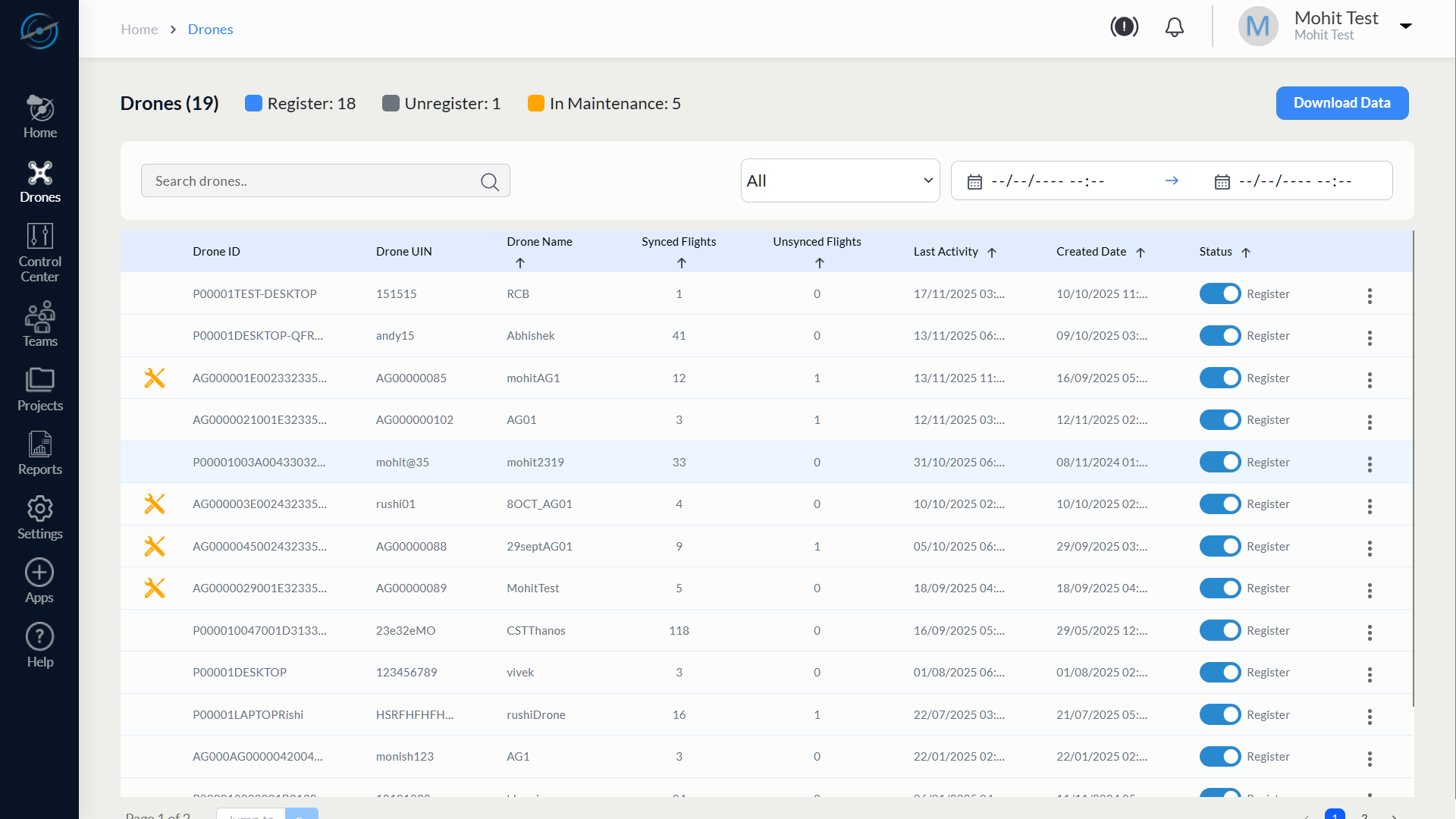
This action opens the Drone List View, where all registered drones are displayed.
💡 Tip: Use the Search bar at the top of the screen to quickly locate a drone by its Drone ID, UIN, or Drone Name.
In addition to the registration status, a drone may also appear with a Maintenance status.
When a drone is placed in Maintenance Mode:
- A maintenance indicator is displayed next to the drone entry in the list.
- Hovering over the indicator displays a tooltip indicating that the drone is in Maintenance Mode.
- The filter dropdown includes an option to view In Maintenance Drones.
- The drone count summary reflects the number of drones currently in Maintenance Mode.
These indicators help users quickly identify drones that are temporarily unavailable for operational use.
6.3 Drone List View
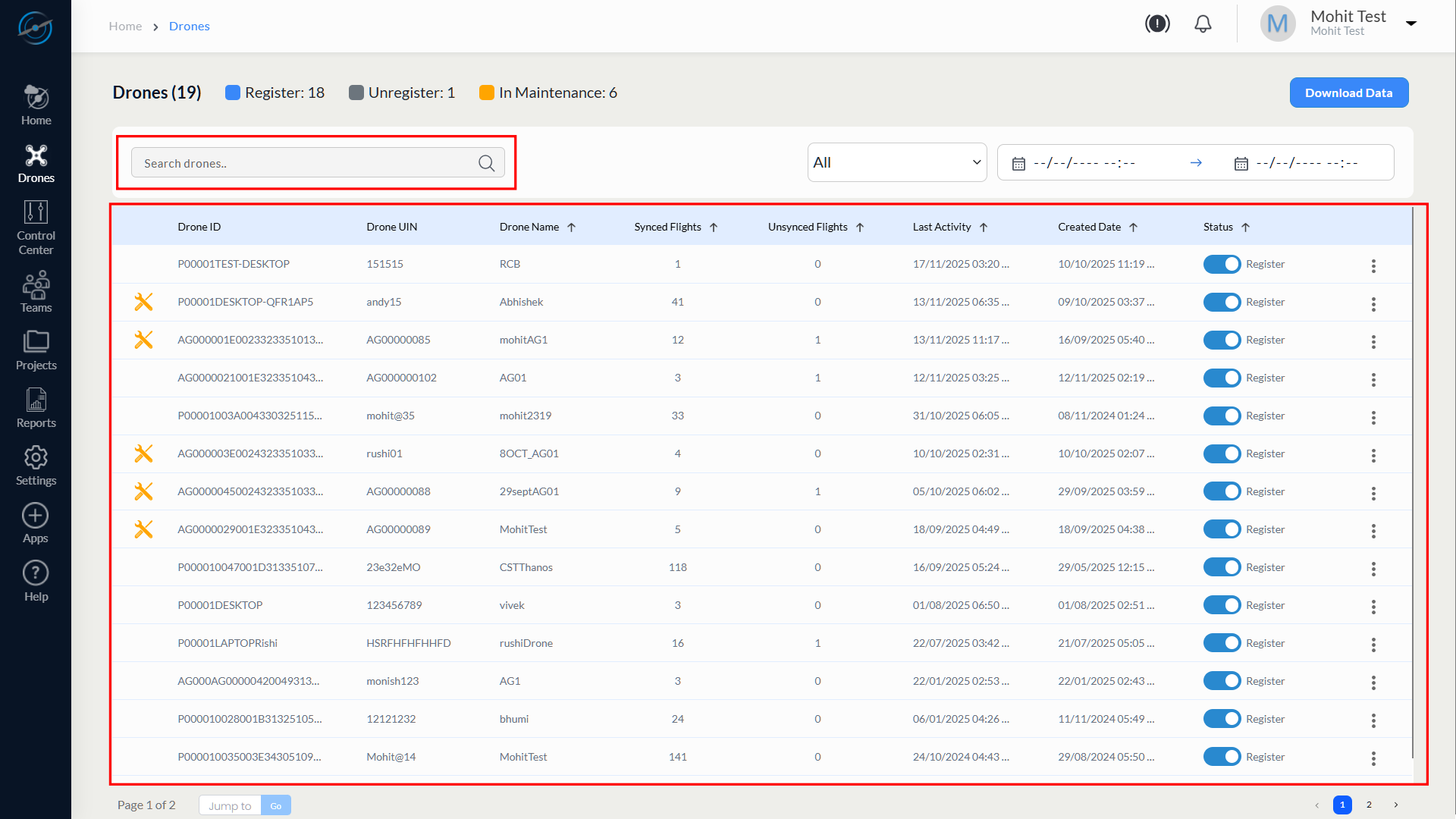
The Drone List View provides a tabular display of all drones associated with your organisation. It serves as the central dashboard for accessing drone metadata, operational status, and registration details.
Table Columns
Column | Description |
Drone ID | Unique identifier automatically assigned by the system |
Drone UIN | Unique Identification Number assigned to the drone |
Drone Name | Custom user-defined name for identification |
Synced Flights | Number of flights successfully synced with the AeroGCS platform |
Created Date | Date and time when the drone was added to the system |
Status | Indicates whether the drone is Registered or Unregistered |
Filter Options
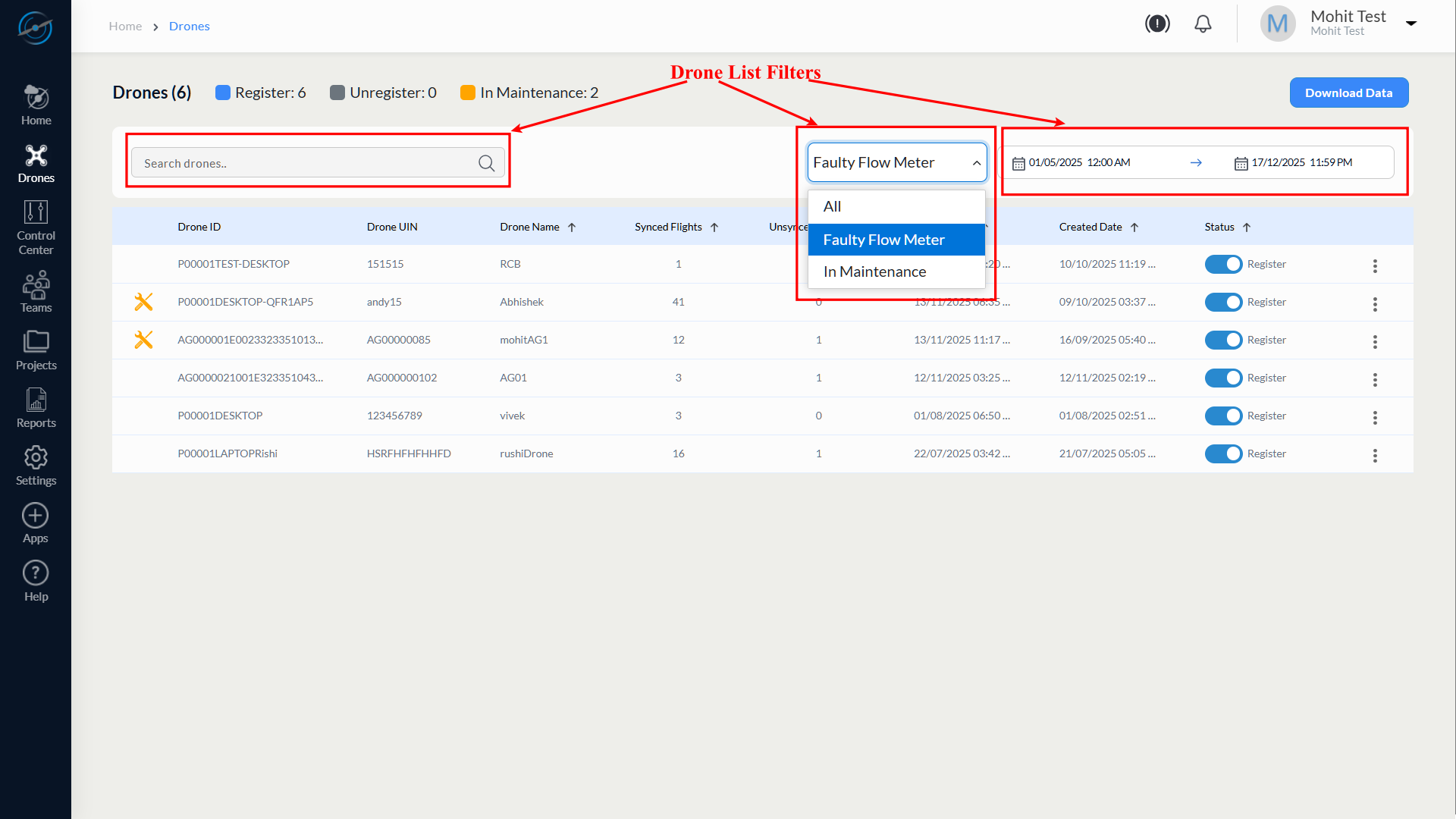
AeroGCS Enterprise offers multiple filtering tools at the top of the Drone List View to help users quickly locate relevant drone records:
Dropdown Filter
- A dropdown list allows you to filter drones based on the following categories:
– All
– Faulty Flow Meter
Date Range Filter
- Use the From – To date range selectors to filter drones based on their Created Date.
- Click the calendar icons to open date pickers and define your preferred range.
Search Bar
- Located at the top-right, the Search bar allows keyword-based lookup using:
– Drone ID
– UIN
– Drone Name
Pagination Controls
- If the list exceeds one page, pagination controls appear at the bottom.
- Use these to navigate across pages or jump to a specific page number.
⚠️ Note: Drones with pending flight data appear under the Unsynced.
💡 Tip: Combine the dropdown filter, date range, and search bar to refine large datasets and quickly access the drone(s) you’re looking for.
6.4 Viewing Drone Details
To view detailed information about a specific drone:
- Navigate to AeroGCS → Drones.
- Select a drone by clicking its Drone Name from the Drone List.
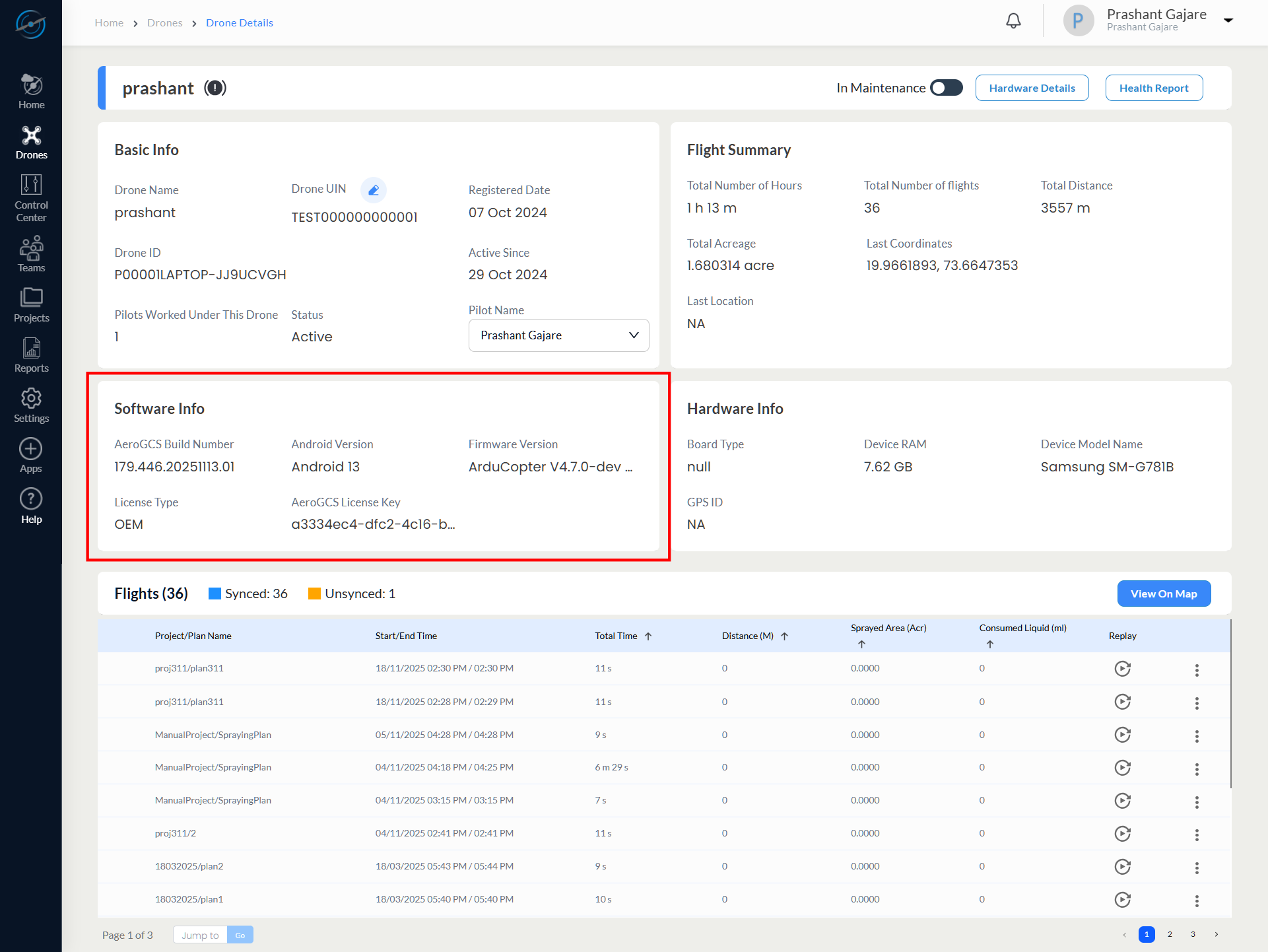
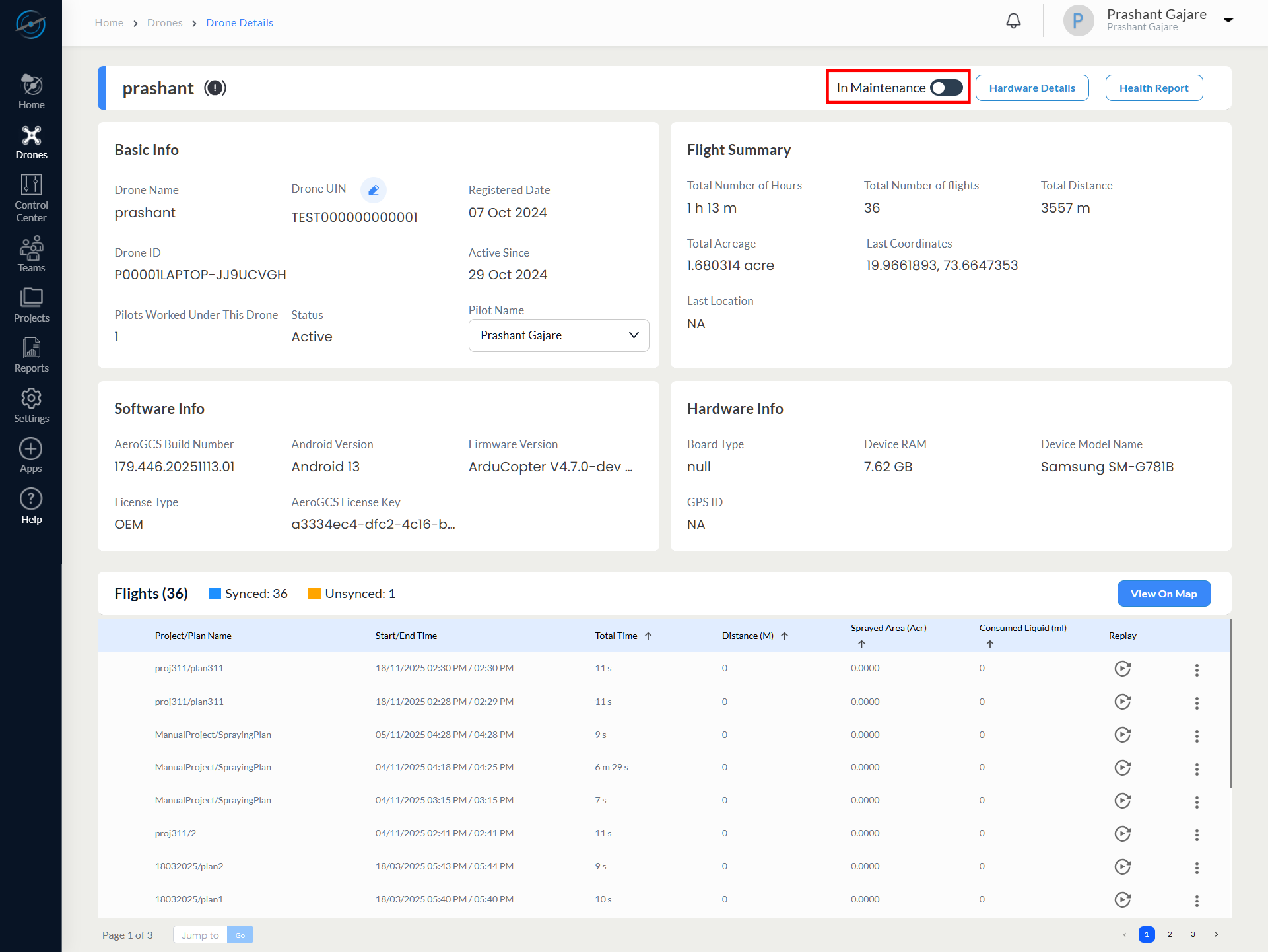
This opens the Drone Details page, which provides a comprehensive overview of the drone’s configuration, operational status, maintenance state, and flight history.
The Drone Details page is organized into the following sections:
- Basic Info
- Software Info
- Flight Summary
- Hardware Info
- Flights
The page also provides quick-access controls for Hardware Details, and Health Report.
1. Basic Info
This section displays the primary identification and operational attributes of the drone.
Basic Info – Fields Description
| Field Name | Description |
| Drone Name | User-defined name assigned to the drone |
| Drone UIN | Unique Identification Number of the drone |
| Drone ID | System-generated internal identifier |
| Registered Date | Date on which the drone was registered in AeroGCS Enterprise |
| Active Since | Date from which the drone has been active |
| Pilots Worked Under This Drone | Number of pilots who have operated this drone |
| Status | Current operational status of the drone |
| Pilot Name | Assigned pilot for recent or active operations |

2. Software Info
This section provides details of the onboard software and firmware configuration.
Software Info – Fields Description
| Field Name | Description |
| AeroGCS Build Number | Installed AeroGCS Enterprise build version |
| Android Version | Android operating system version running on the device |
| Firmware Version | Installed flight controller firmware version |
| License Type | License category associated with the drone |
The Flight Summary section provides an aggregated overview of the drone’s operational history.
Flight Summary – Fields Description
| Field Name | Description |
| Total Number of Hours | Cumulative flight duration |
| Total Number of Flights | Total number of completed missions |
| Total Distance | Total distance covered across all flights |
| Total Acreage | Total area covered during operations |
| Last Coordinates | Last recorded GPS coordinates |
| Last Location | Last known geographical location |

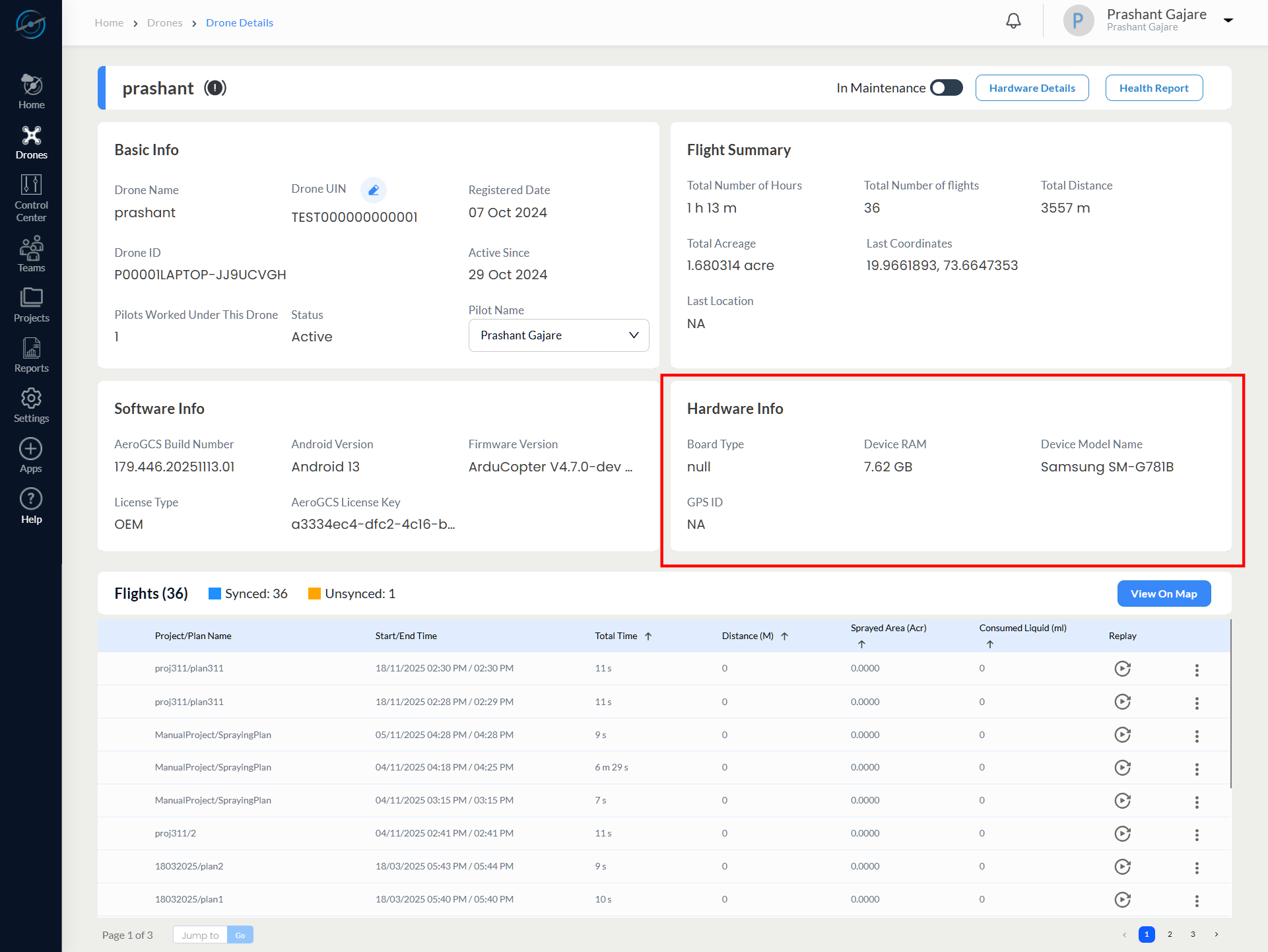
4. Hardware Info
This section displays summary-level hardware information detected from the drone.
Hardware Info – Fields Description
| Field Name | Description |
| Board Type | Flight controller or board type |
| Device RAM | Available system memory |
| Device Model Name | Mobile or onboard device model |
| GPS ID | Detected GPS module identifier |
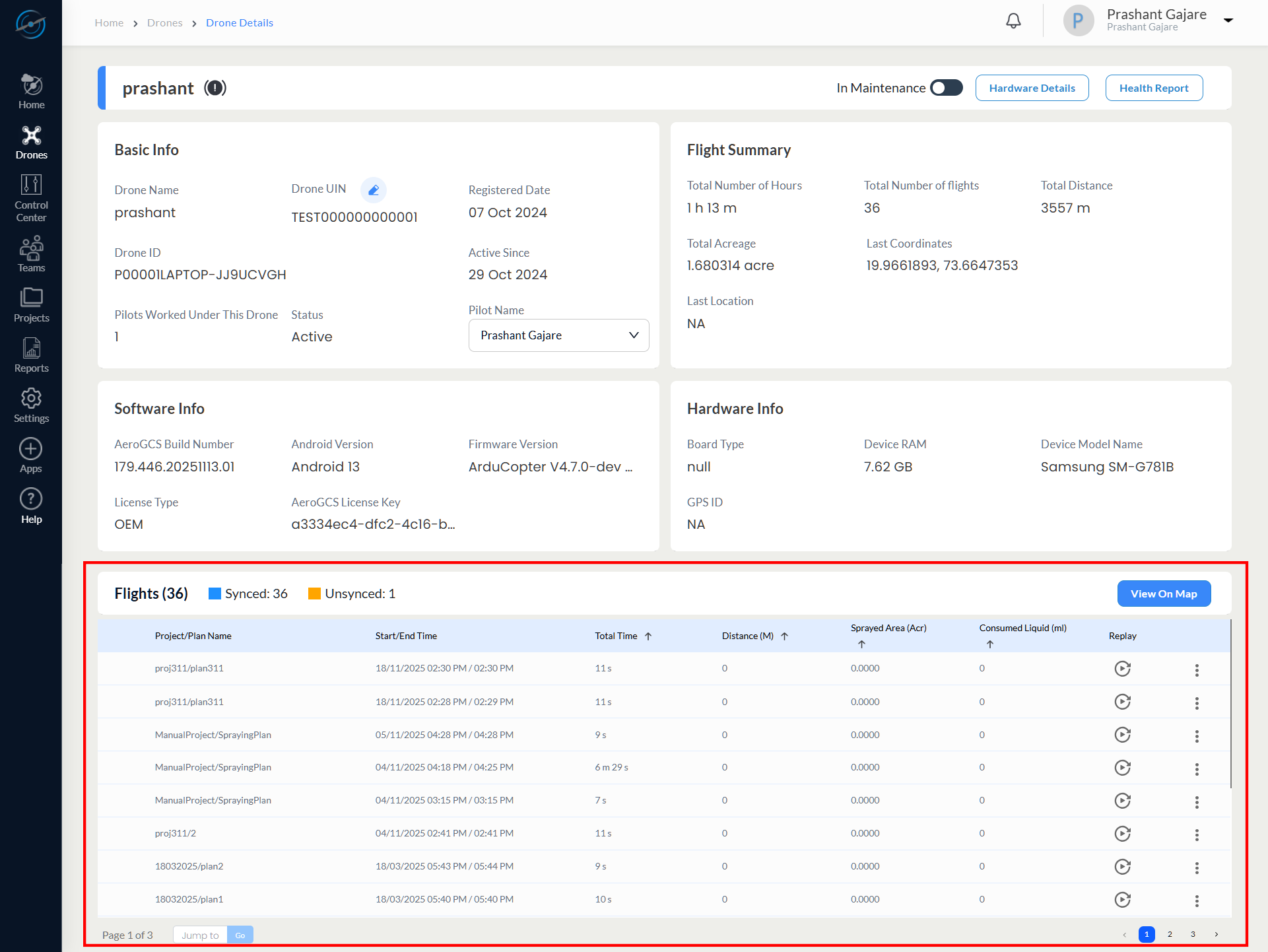
| Column Name | Description |
| Project / Plan Name | Associated project or spraying plan |
| Start / End Time | Mission start and end timestamps |
| Total Time | Duration of the flight |
| Distance (M) | Distance covered during the mission |
| Sprayed Area (Acr) | Area sprayed during the operation |
| Consumed Liquid (ml) | Quantity of liquid consumed |
| Replay | Replay icon to view flight path and telemetry |
| Options Menu | Additional actions such as delete, if permitted |
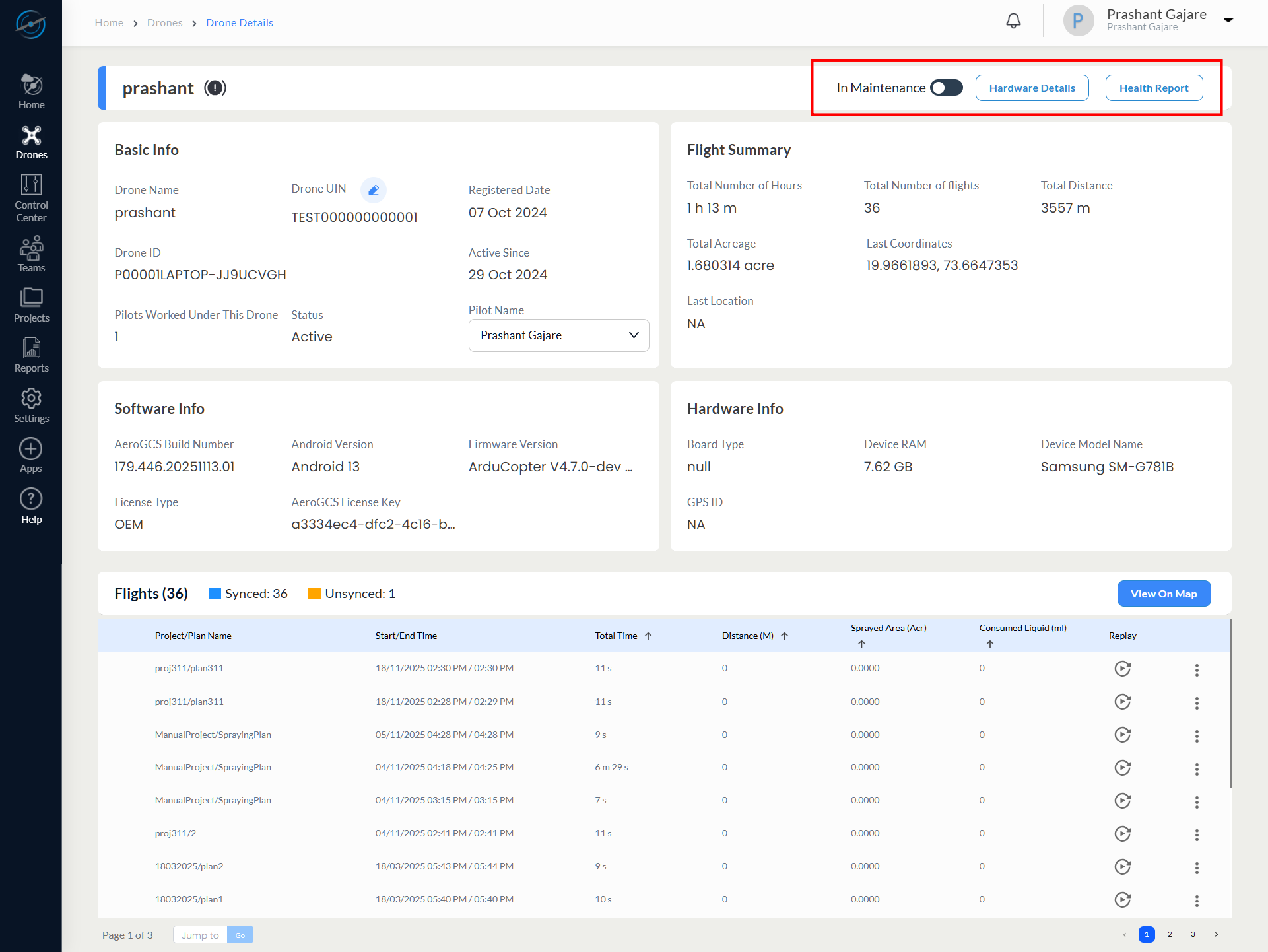
6. Action Buttons
The following action buttons are available at the top-right corner of the Drone Details page:
Action Buttons – Description
| Button Name | Function |
| Hardware Details | Opens the detailed hardware configuration form to view, edit, or update drone hardware components. |
| Health Report | Displays the drone’s current health status, diagnostics, warnings, and system alerts. |
| In Maintenance (Toggle Button) | Enables or disables Maintenance Mode for the selected drone. When enabled, the drone is marked as In Maintenance and operational activities are restricted. When disabled, the system prompts the user to review and update hardware details before returning the drone to active operational status. |
7. Error Logs Button
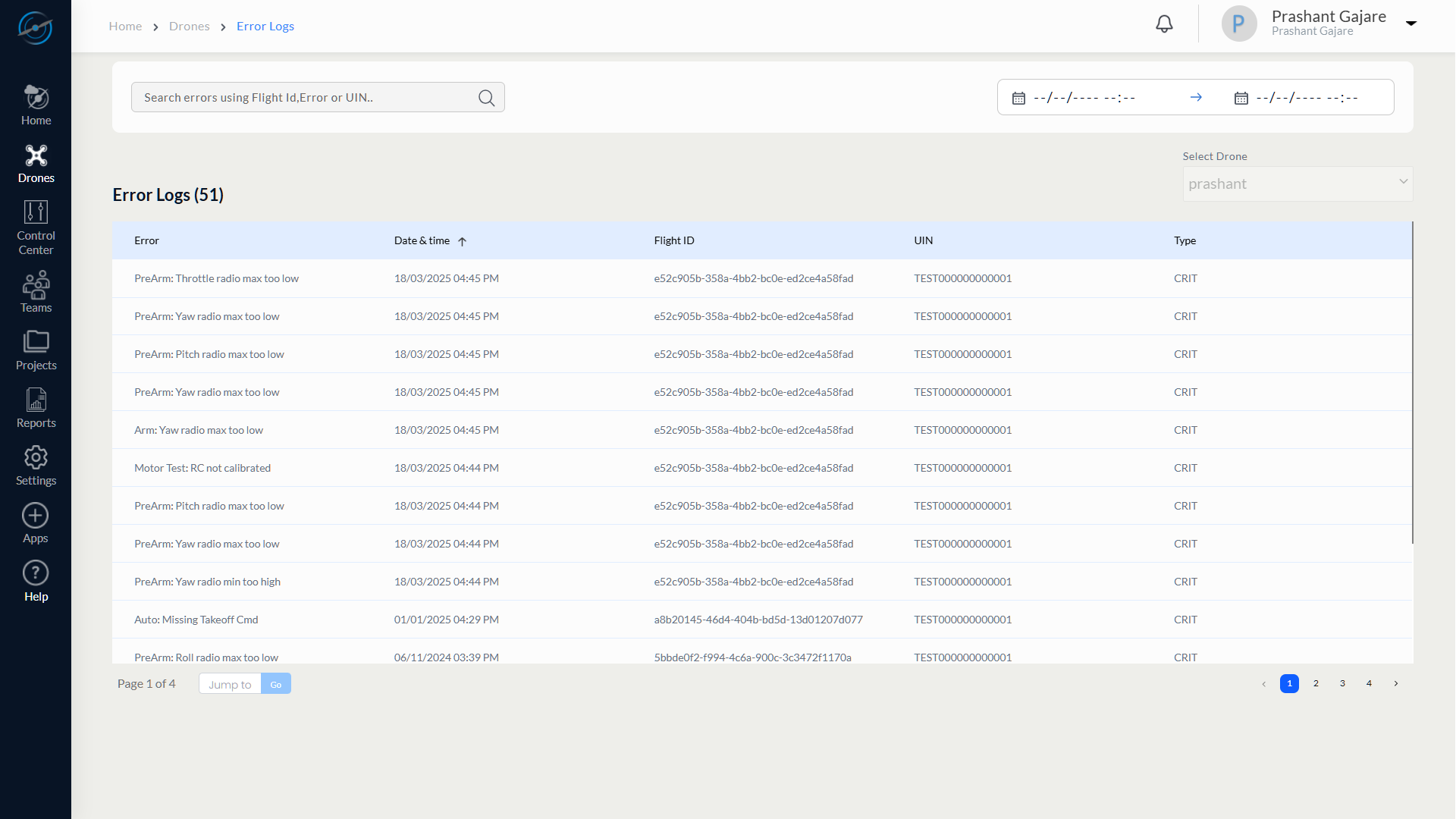
An Error Logs  icon is displayed next to the Drone Name at the top of the Drone Details page.
Selecting this icon allows the user to:
- View drone-specific error logs
- Review system alerts and warnings
- Investigate issues such as GPS errors, sensor faults, or synchronization problems
This feature helps identify potential issues before planning or executing missions.
6.5 Drone Maintenance Mode
Drone Maintenance Mode allows a drone to be temporarily marked as unavailable for operational use while maintenance activities such as inspection, repair, or component replacement are being carried out.
This feature helps prevent unintended mission execution during maintenance while retaining access to historical flight data, diagnostics, and configuration information.
2 Enabling
To place a drone in Maintenance Mode:
- On the Drone Details page, turn ON the In Maintenance
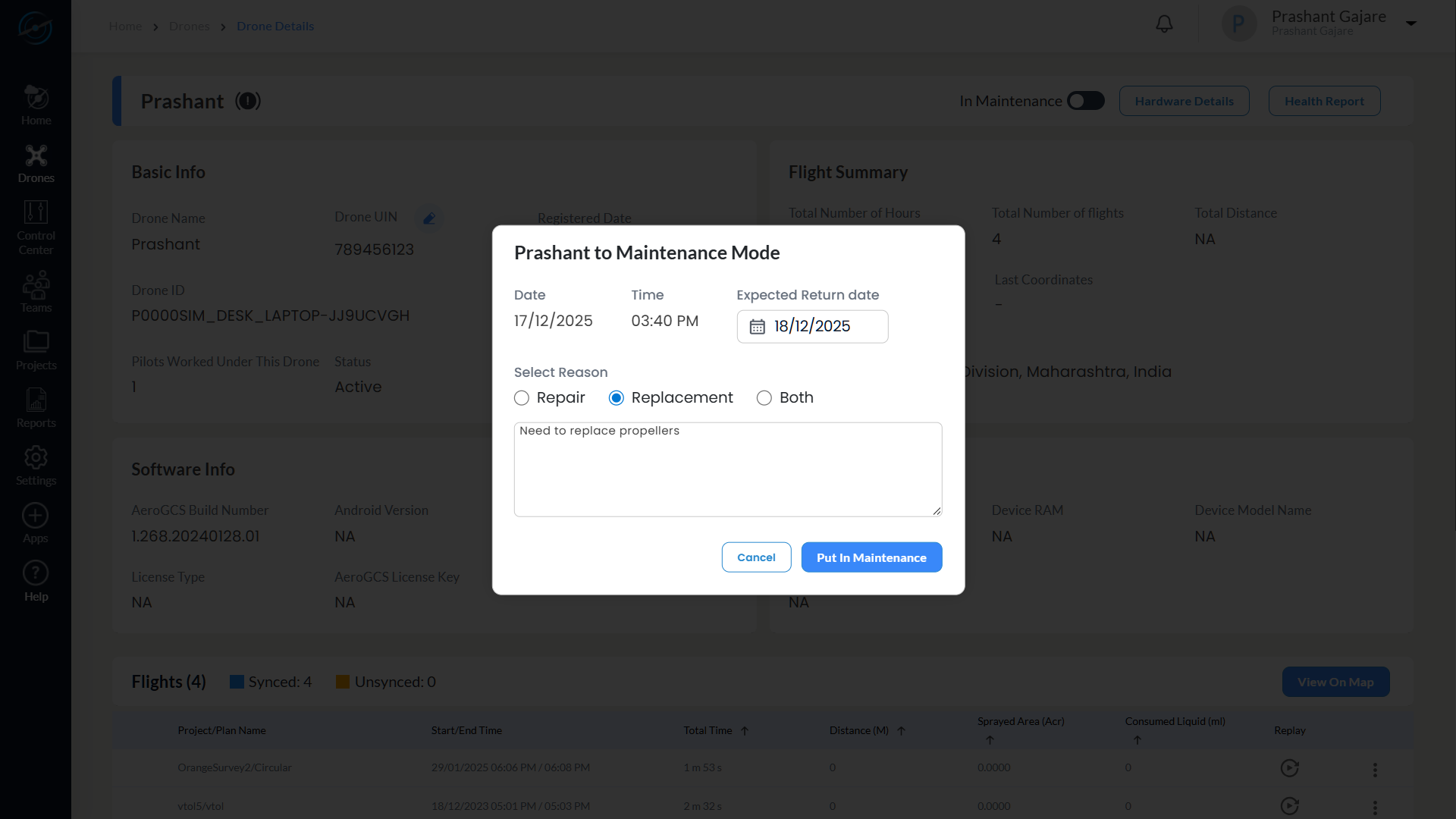
A dialog titled “Put <Drone Name> to Maintenance Mode” is displayed.
The dialog includes the following fields:
- Date and Time (auto-populated by the system)
- Maintenance reason selection:
– Repair
– Replacement
– Both - A text field to enter the maintenance reason
- Select Put in Maintenance to proceed.
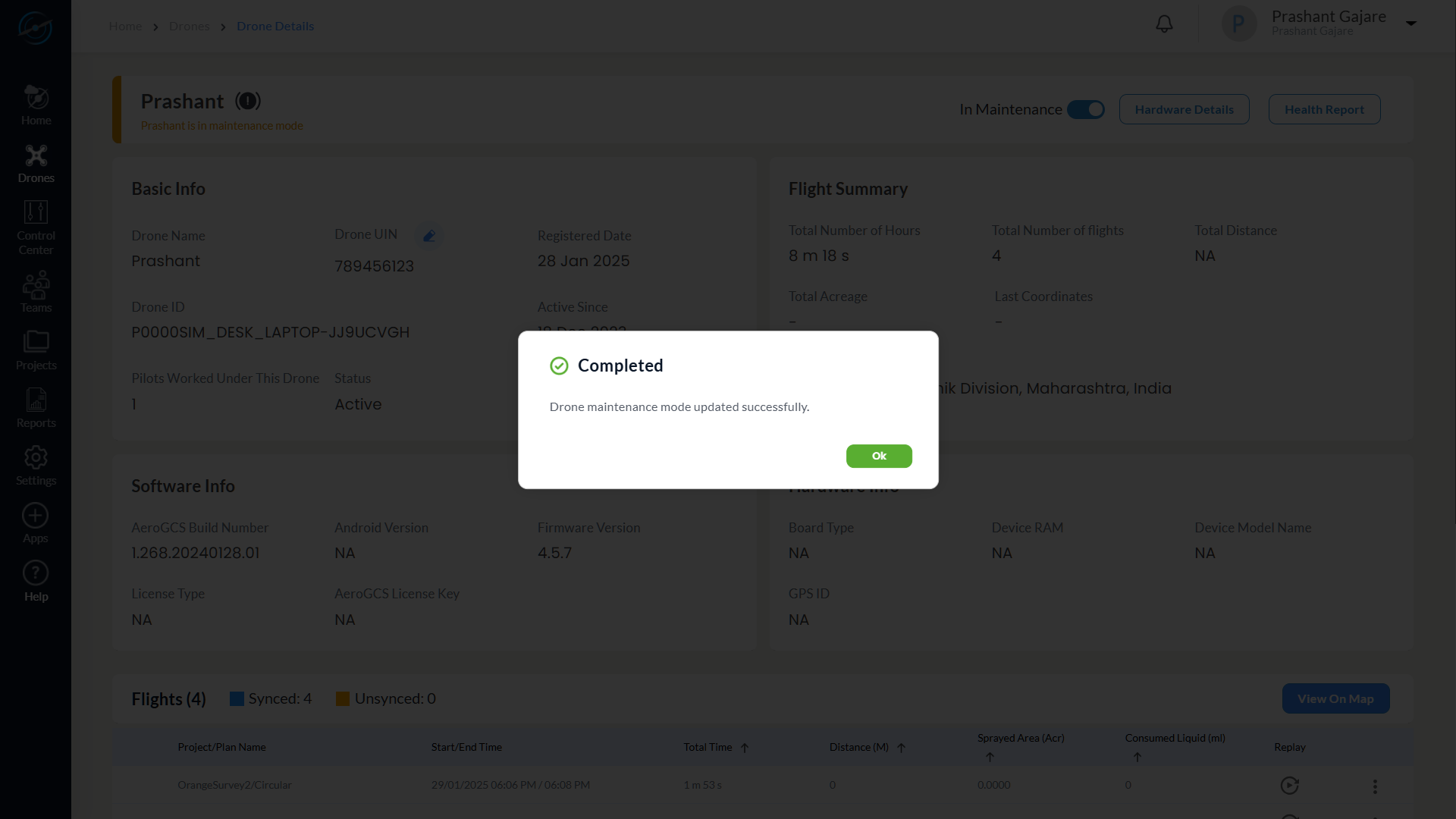
The following message is shown:
Completed
Drone maintenance mode updated successfully.
Select OK to close the dialog.
Once confirmed, the drone’s Maintenance status is immediately updated across the AeroGCS Enterprise platform, including:
- The Drone Details page
- The Drone List view
- Maintenance indicators and status counters
This completion message is displayed whenever the Maintenance Mode status is updated.
4 Behavior in Maintenance Mode
When a drone is in Maintenance Mode:
- The Maintenance status banner is displayed on the Drone Details page.
- The drone appears as In Maintenance in the Drone List.
- A maintenance indicator and tooltip are shown in the list view.
- Historical flight records and analytics remain accessible.
- Drone registration and unregistration actions remain available.
Maintenance Mode affects drone availability only and does not delete or hide existing operational data.
5 Disabling
To disable Maintenance Mode after completing maintenance activities:
- Open the drone that is currently in Maintenance Mode.
- Turn OFF the In Maintenance
After the toggle is turned OFF, the system automatically redirects the user to the Edit Hardware Details page.
An informational banner is displayed at the top of the Hardware Details page indicating that the drone is being taken out of Maintenance Mode and reminding the user to update hardware information if any changes were made during maintenance.
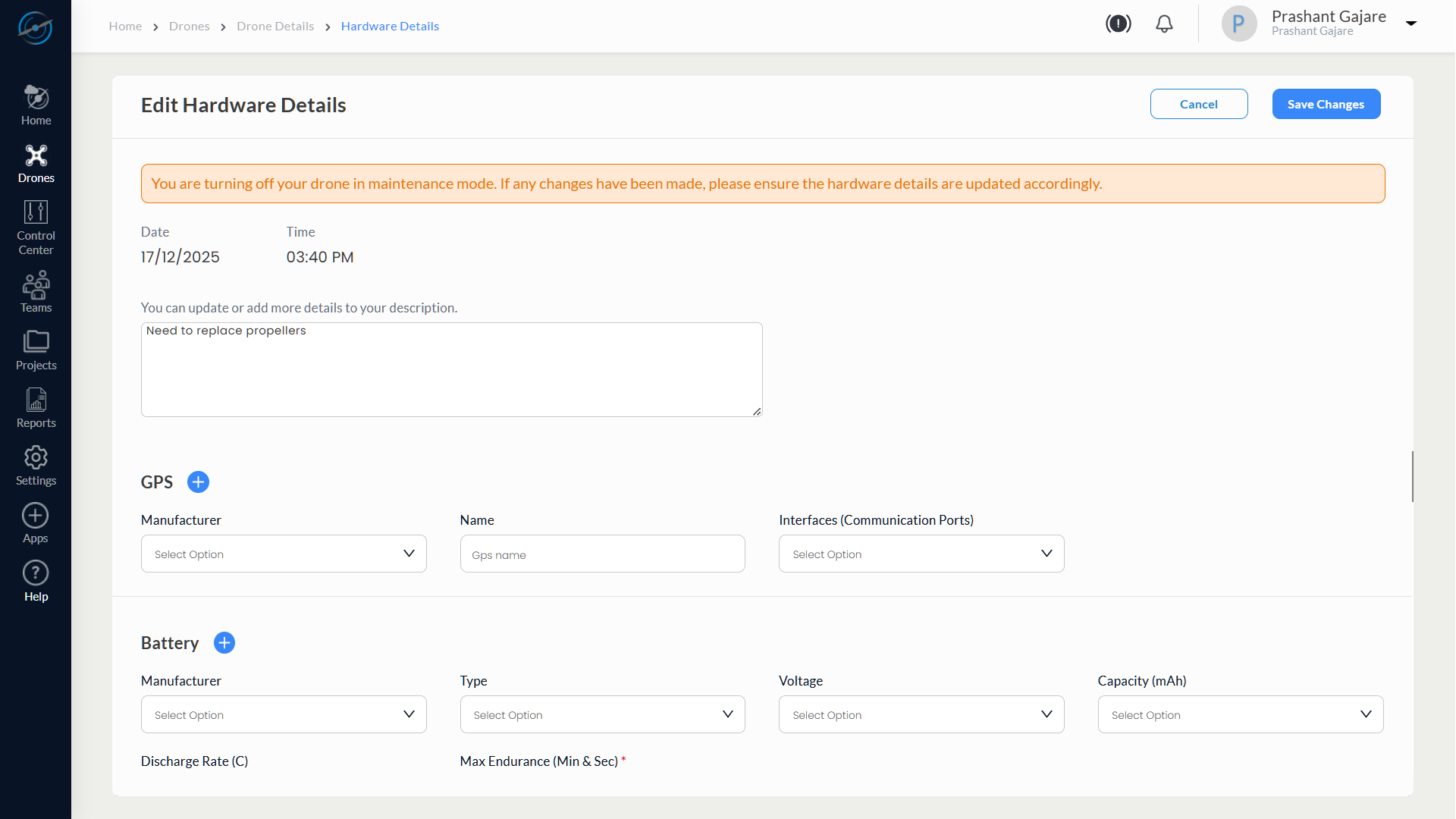
- Review and update the hardware details as required based on the maintenance performed.
- Select Save Changes to apply the updates.
Upon saving the hardware details:
- The system exits Maintenance Mode.
- The user is redirected back to the Drone Details
6.6 Hardware Details
The Hardware Details tab provides a comprehensive overview of the drone’s onboard components. It allows users to view, edit, and update hardware specifications, ensuring accurate documentation of the drone’s physical configuration.
1. Accessing the Hardware Details Tab
To open the Hardware Details view:
- Navigate to the Drone Details
- Click the Hardware Details button located at the top right.
If no hardware data exists, a message appears:
Note: There is currently no hardware information available. Please click on the ‘Edit  ‘ option to add or update information.
Click OK to proceed to the Hardware Details screen in view-only mode with all fields marked as N/A.
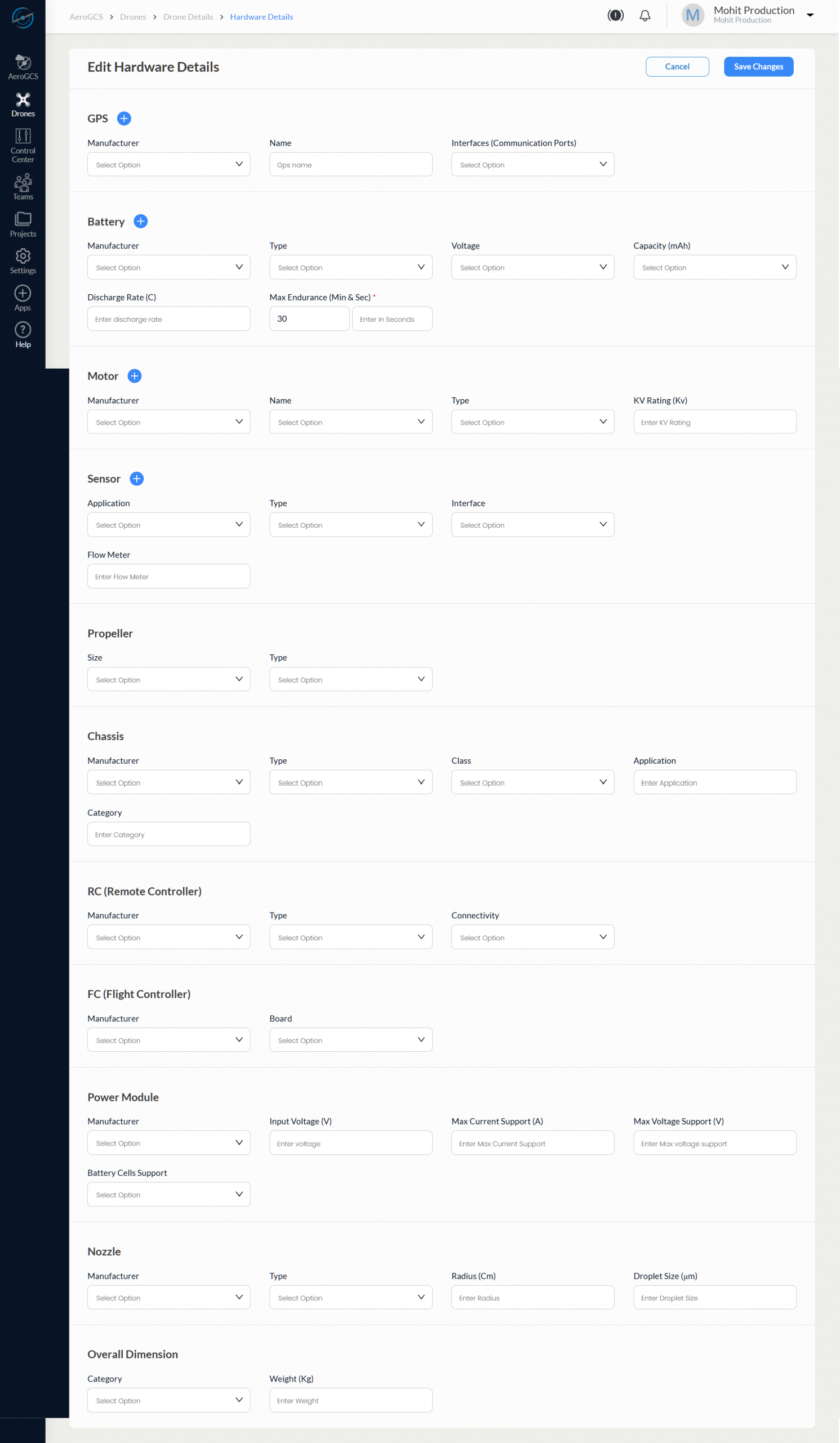
2. Editing Hardware Information
- Click the Edit icon on the Hardware Details screen.
- The form enters edit mode, enabling each section for input.
- You can:
- Add new component details
- Update existing values
- Remove non-applicable entries (where applicable)
Once the entries are complete, click Save Changes to update the drone’s hardware profile.
3. Hardware Components and Fields
| Component | Captured Fields |
| GPS | Manufacturer, Name, Communication Ports |
| Battery | Manufacturer, Type, Voltage, Capacity (mAh), Discharge Rate (°C), Max Endurance |
| Motor | Manufacturer, Name, Type, KV Rating (Kv) |
| Sensor | Application, Type, Interface |
| Flow Meter | Flow meter configuration |
| Propeller | Size, Type |
| Chassis | Manufacturer, Type, Class, Application, Category |
| Remote Controller (RC) | Manufacturer, Type, Connectivity |
| Flight Controller (FC) | Manufacturer, Board |
| Power Module | Manufacturer, Input Voltage (V), Max Current Support (A), Max Voltage Support (V), Battery Cells Support |
| Nozzle | Manufacturer, Type, Radius (cm), Droplet Size (µm) |
| Overall Dimensions | Category, Weight (kg) |
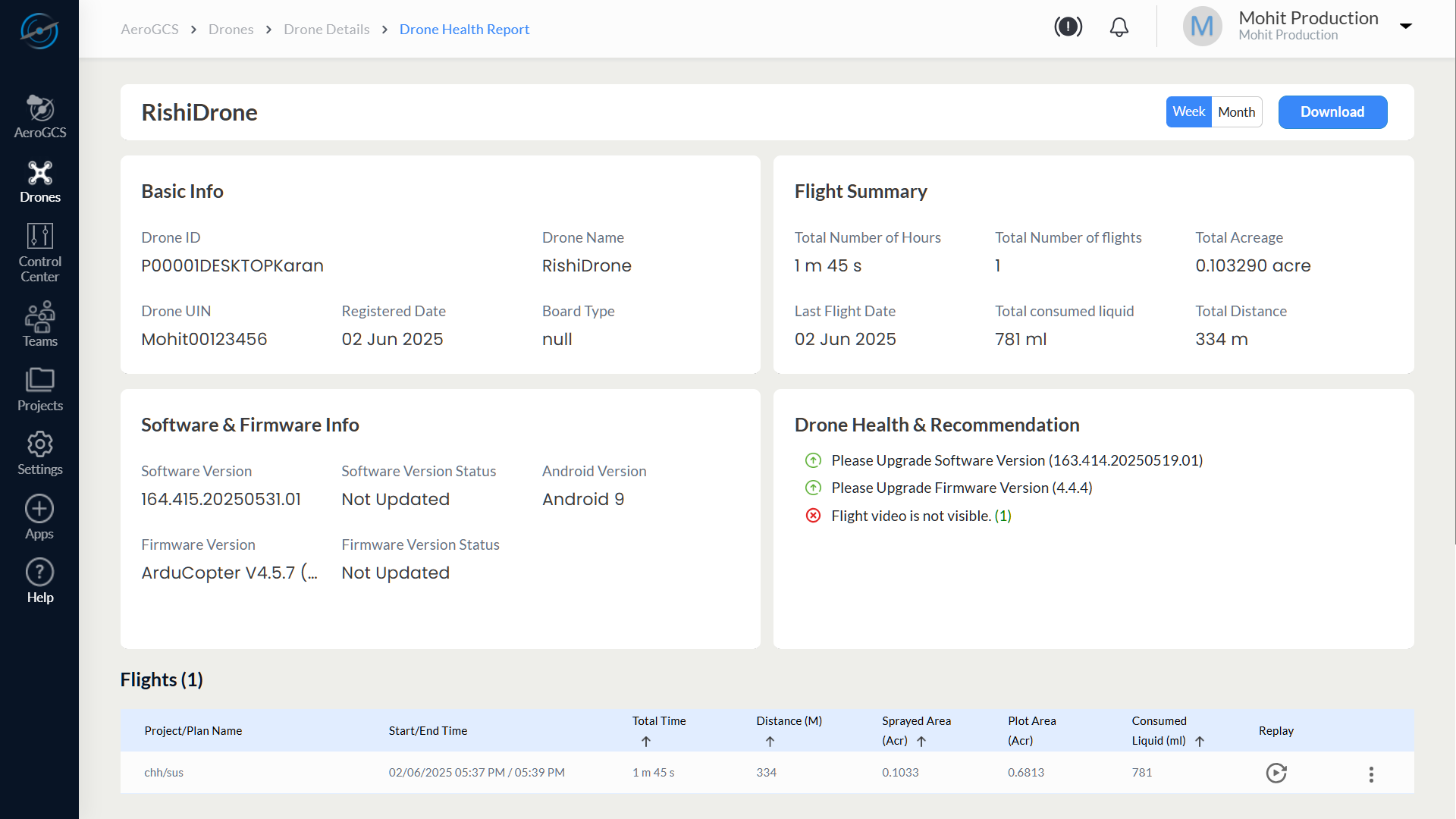
6.7 Health Report
The Health Report tab provides diagnostic insights into a drone’s software, firmware, and operational health. It helps users assess mission readiness, detect critical issues, and maintain compliance by offering version status, telemetry summaries, and system-generated warnings.
Accessing the Health Report
To open the Health Report:
- Navigate to the Drone Details
- Click the Health Report button located at the top right of the page.
This opens the Drone Health Report view, which is divided into the following sections:
- Basic Info
- Software & Firmware Info
- Flight Summary
- Drone Health & Recommendation
- Flight Logs
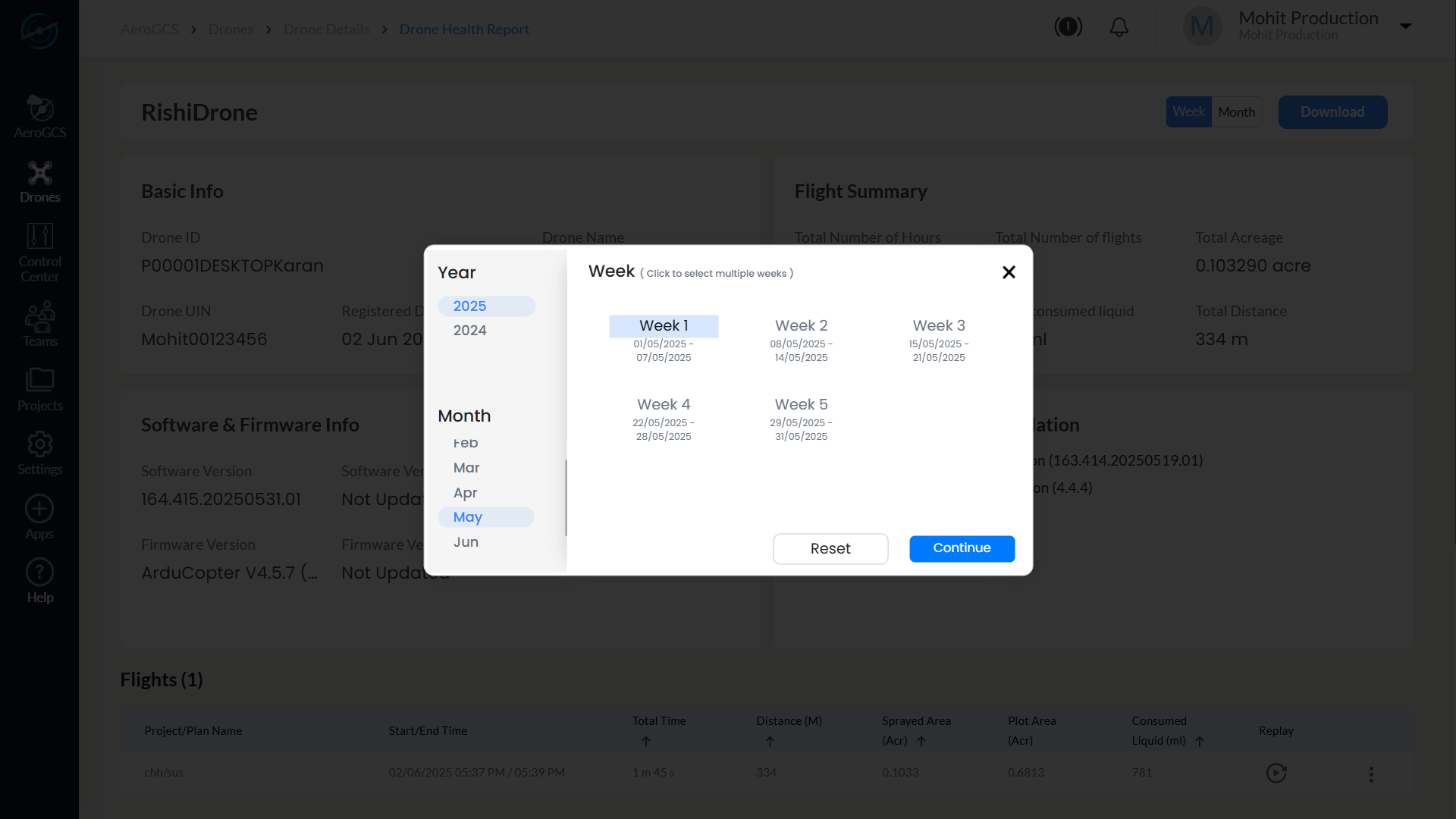
Duration-Based Report Filtering
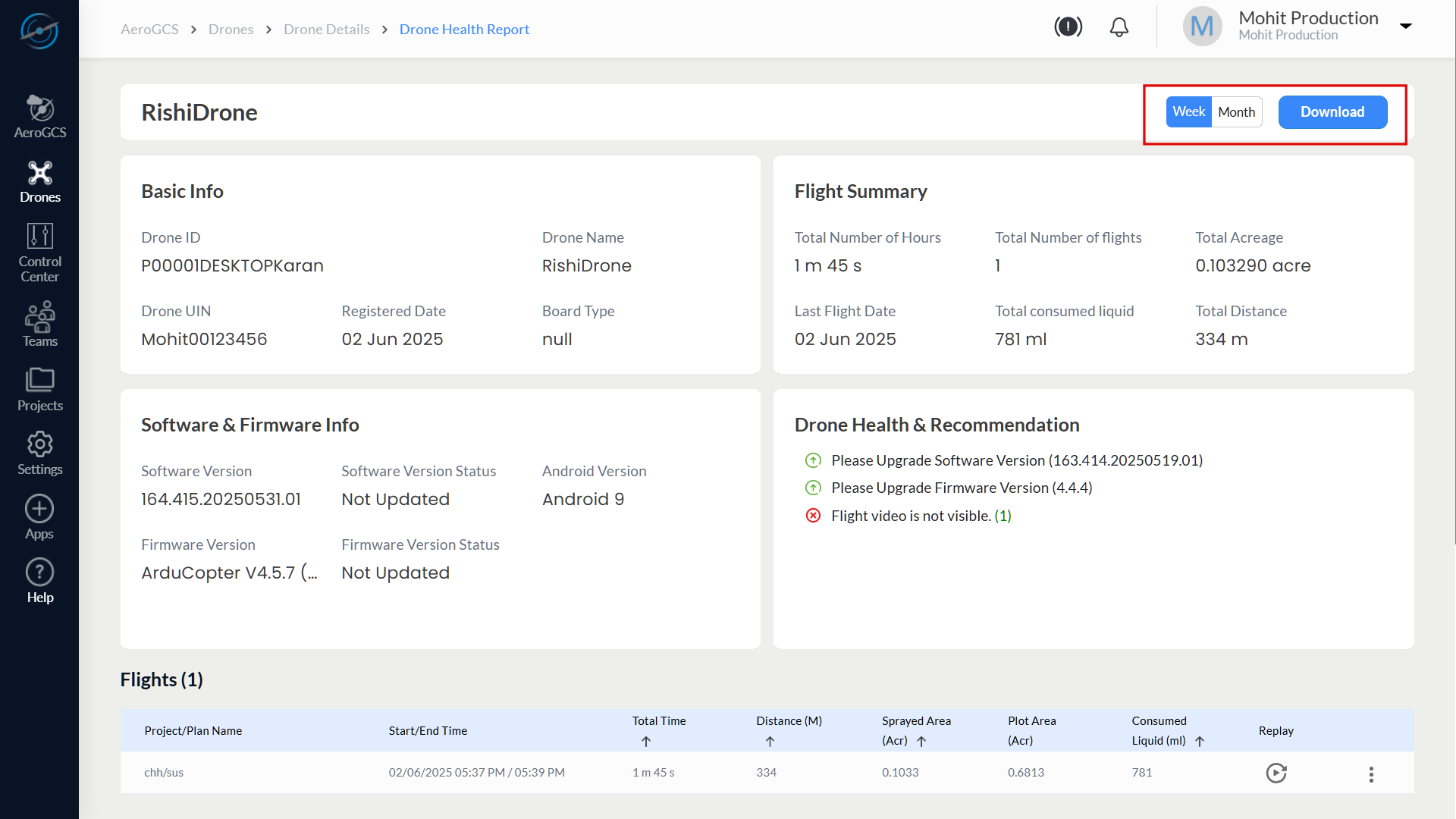
In the top-right corn er of the Health Report tab (beside the drone name), the following controls are available:
| Button | Function |
| Week | Opens a selection dialog to view health data for a specific week |
| Month | Opens a selection dialog to view health data for a specific month |
| Download | Exports the displayed health report as a PDF file |
Using Week or Month Filters
- Click Week to open a dialog that allows you to:
- Select Year
- Select Month
- Choose Week of the Month
- Then click Continue to view data for the selected week.
- Use Reset to clear previous selections.
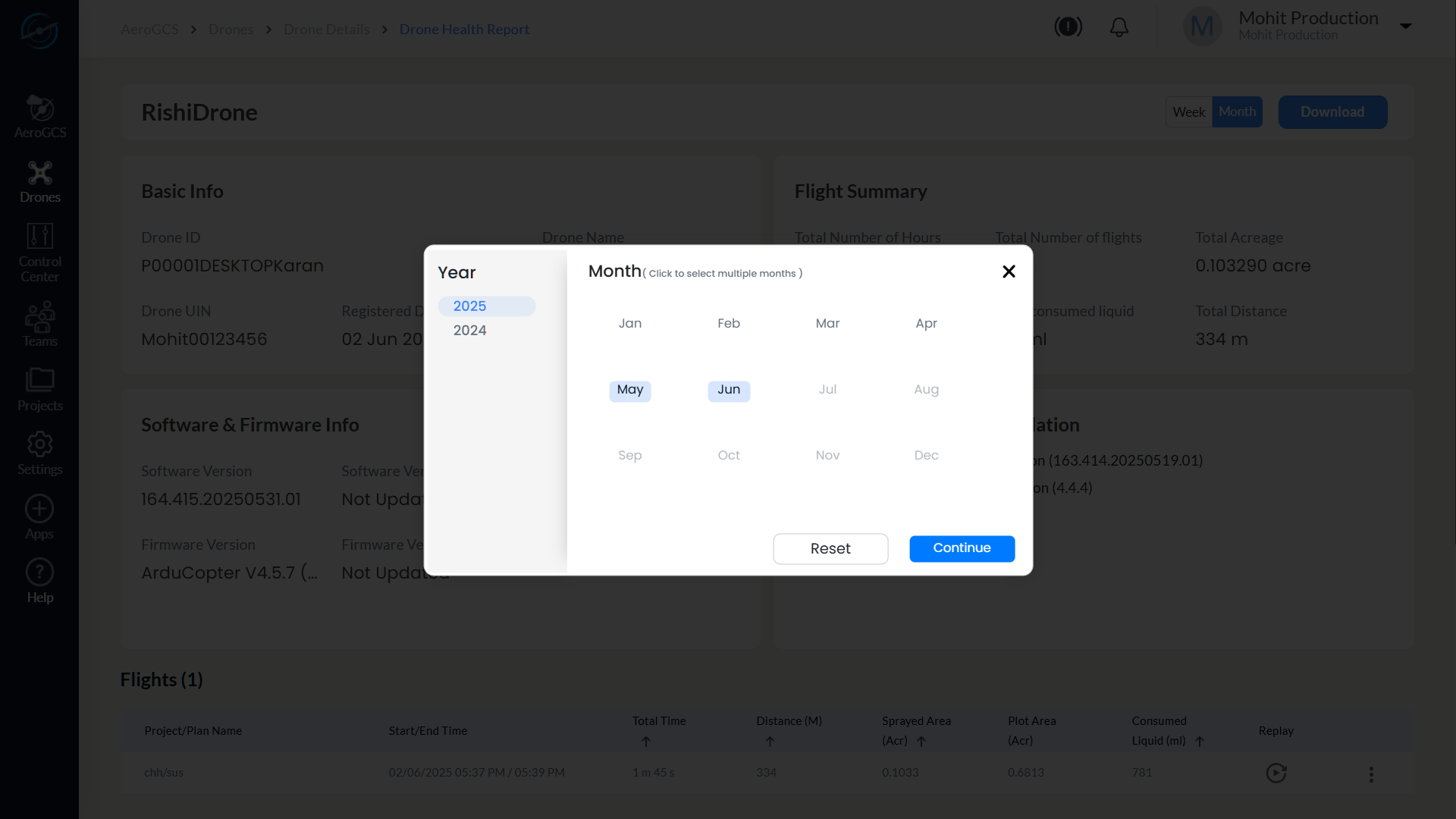
- Click Month to open a dialog with:
- Select Year
- Select Month
- Then click Continue to display the monthly report.
- Use Reset to reset filters.
2. Software & Firmware Info
This section outlines the current firmware and software configurations:
| Field | Value |
| Software Version | 164.415.20250531.01 |
| Software Version Status | Not Updated |
| Firmware Version | ArduCopter V4.5.7 |
| Firmware Version Status | Not Updated |
| Android Version | Android 9 |
4. Drone Health & Recommendation
This section provides actionable diagnostics and warnings:
| Status Indicator | Message |
| ✅ | Please upgrade software version (163.414.20250519.01) |
| ✅ | Please upgrade firmware version (4.4.4) |
| ❌ | Flight video is not visible |
- ✅ Green: Advisory or optional update
- ❌ Red: Critical warning that may impact mission success
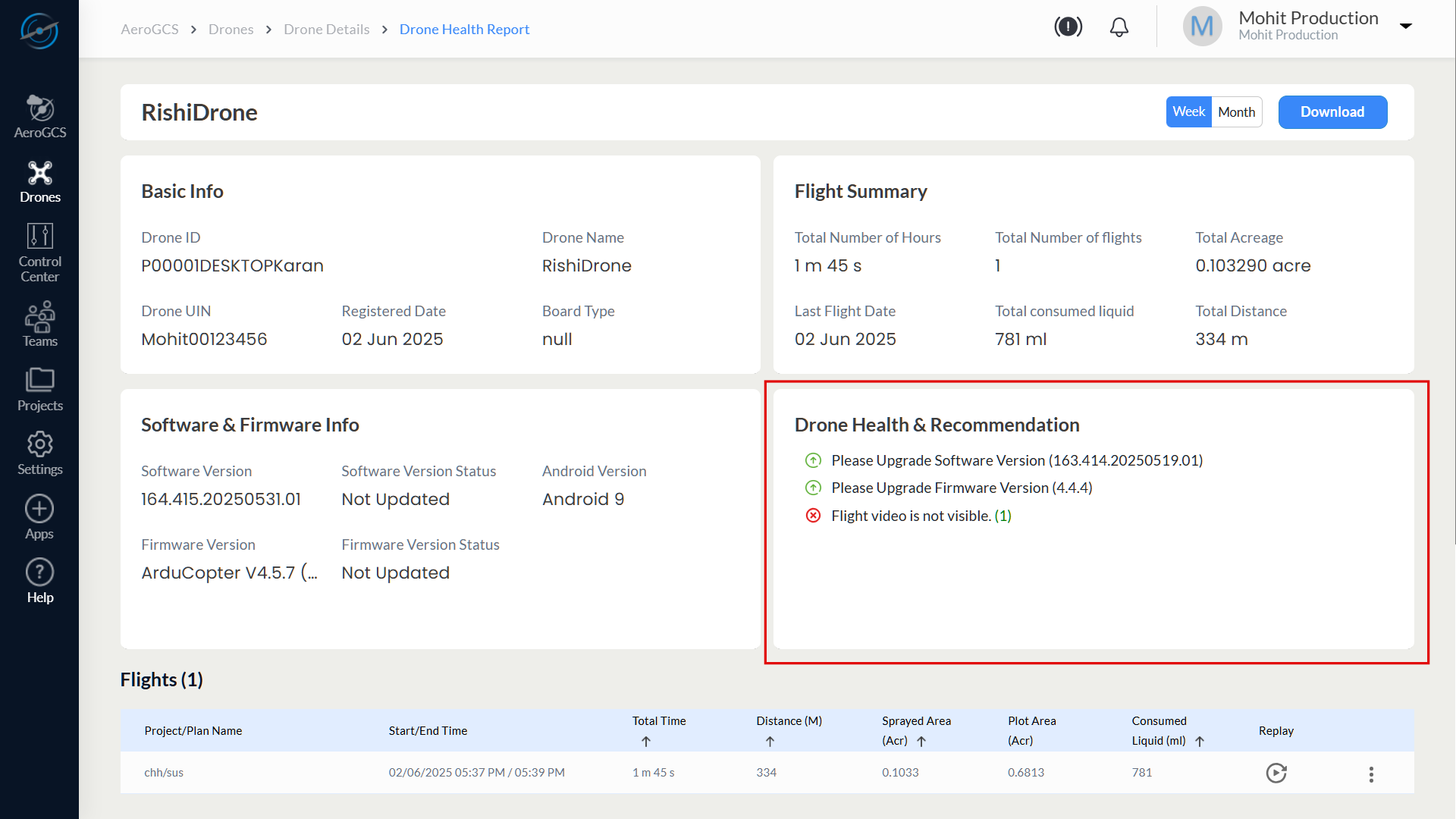
⚠️ Resolve all critical alerts before starting new operations to ensure mission safety and compliance.
5. Flights
The Flights section lists detailed logs for each mission included in the selected duration (week/month):
| Column | Description |
| Project/Plan Name | Name of the operation |
| Start/End Time | Timestamp of the flight session |
| Total Time | Duration of flight |
| Distance (M) | Distance covered |
| Sprayed Area (Acr) | Area where spraying occurred |
| Plot Area (Acr) | Assigned plot area |
| Consumed Liquid (ml) | Amount of spray liquid used |
| Replay | ⟳ icon to replay the flight |
PDF Export
To generate a report:
- Click the Download button located beside the Week and Month
- A PDF file is generated for the currently displayed health report.
- You can save or share this report for documentation or audit purposes.
💡 Tip: Apply filters first (Week or Month) to generate a scoped PDF for that duration.
6.8 Best Practices
Follow these best practices to ensure optimal drone performance, data accuracy, and operational safety:
- Keep software and firmware updated regularly to maintain compatibility and system stability.
- Review flight sync logs frequently to detect and resolve any discrepancies in telemetry data.
- Use descriptive drone names and valid UINs to improve traceability and avoid misidentification during operations.
- Check the Health Report tab before and after each mission to identify critical issues or version mismatches.
- Use the Hardware Details tab to validate and correct component configurations and detect mismatched or unsupported modules.
- Download health reports in PDF format for documentation, audits, and mission planning reviews.
- Use Week/Month filters in the Health Report tab to assess time-bound drone performance and system usage.
6.9 Troubleshooting
Refer to the table below to identify and resolve common issues encountered in the Drones module:
| Issue | Possible Reason | Recommended Action |
| Drone not syncing | Outdated firmware | Update firmware and attempt to sync again |
| No health data visible | No recent flight activity | Conduct a flight and sync data |
| “Tank Empty” warning | Flow meter unset or faulty | Configure the flow meter correctly in hardware details |
| Drone shows Unregistered | UIN not entered or saved | Enter UIN and complete registration from the Drone Details view |
| Health recommendations not updating | Old firmware/software versions | Upgrade firmware/software via AeroGCS application |
| Flight video not visible | Camera disconnected or error | Check camera connectivity and re-sync |