
-
AeroGCS GEEN User Manual
3. Getting Started
Getting Started with AeroGCS Green on users’ Android mobile devices is a breeze. Follow these simple steps to install, activate, and ensure users are updated with the latest features. From navigating the Play Store to activating user licenses or opting for a trial period, this guide provides a seamless introduction to controlling drones effortlessly. Whether users are seasoned users or beginners, this section walks users through the process, making the setup a smooth and efficient experience.
| Note: Before proceeding, ensure your device is connected to a stable internet connection with adequate speed for optimal performance. |
3.1 Installing AeroGCS GREEN
1. How to install AeroGCS Green on Android Mobile
1.1 Go to the “Play Store” application on the user’s Android Mobile
1.2 Search For The “AeroGCS GREEN” application as shown in the following image
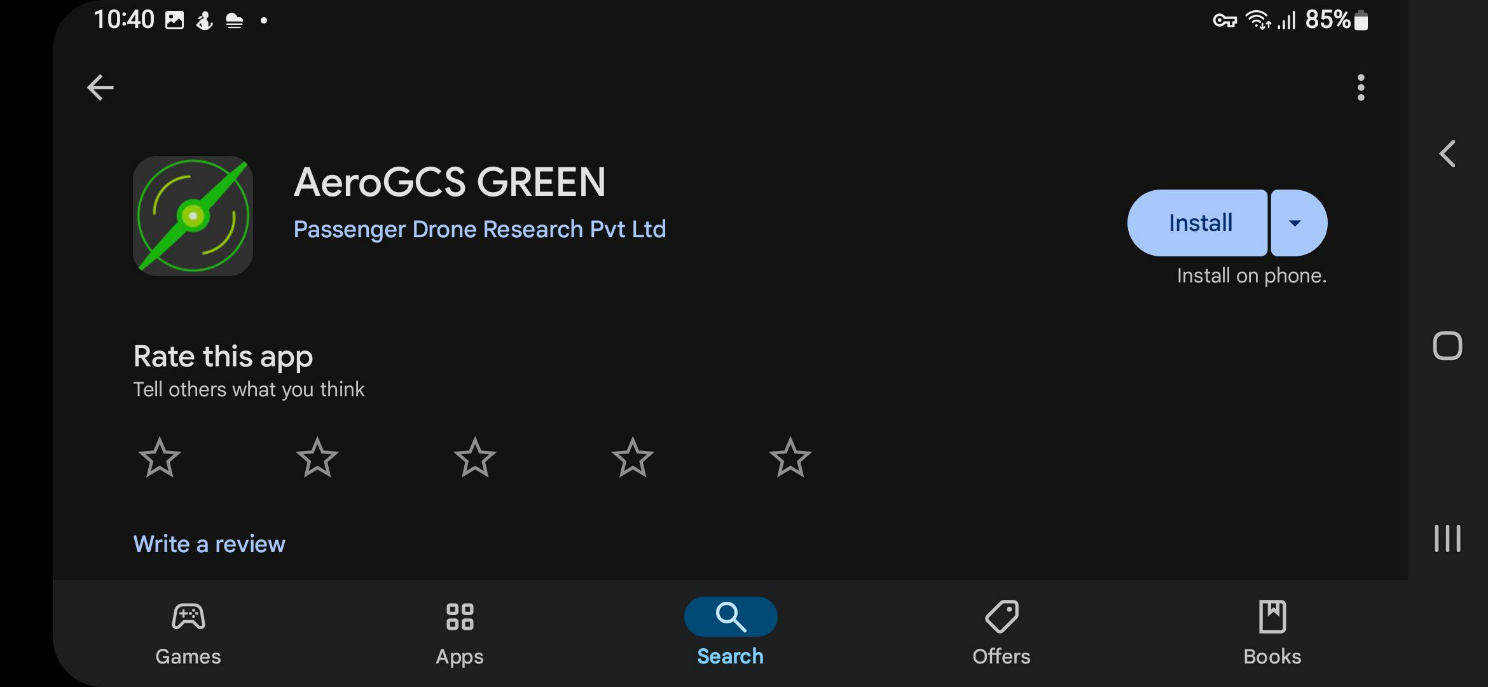
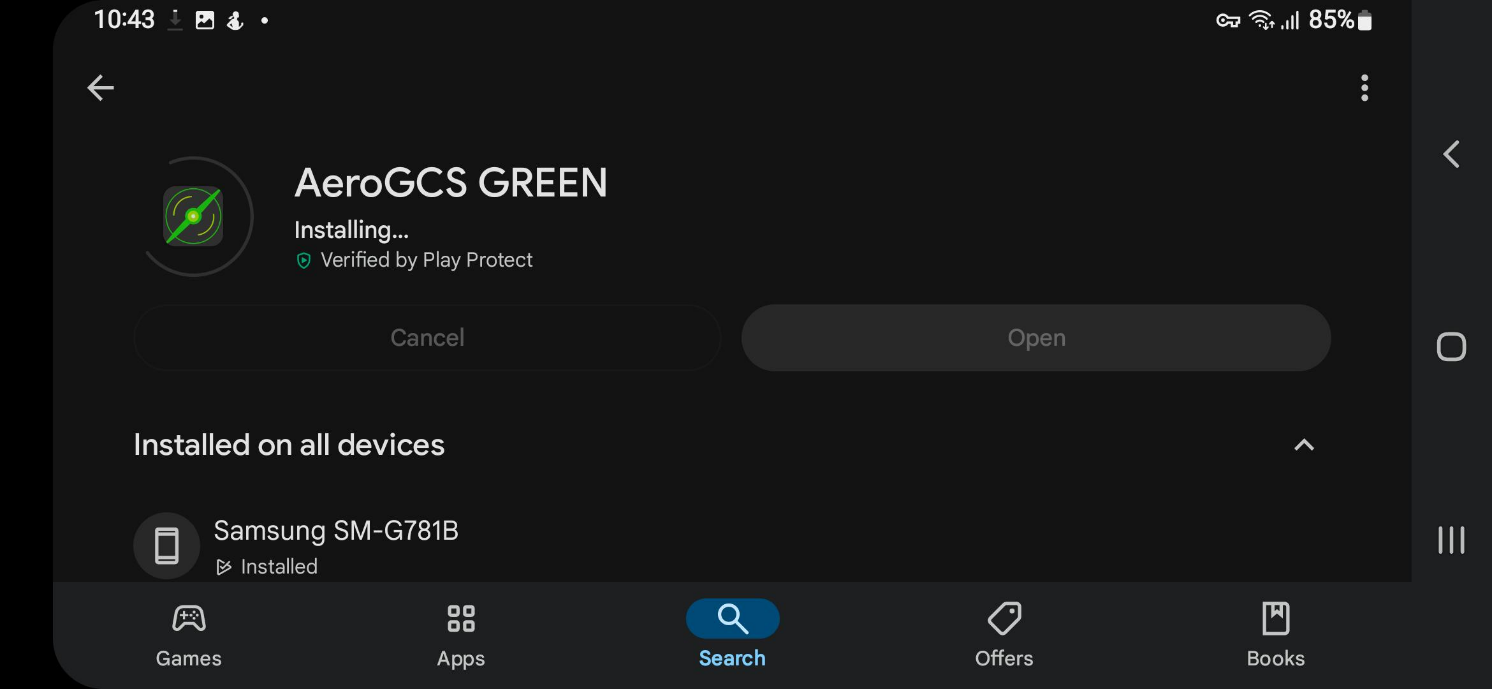
1.3 Tap the “Install” button to begin installing the AeroGCS GREEN Application on the user’s Android Device. This will prompt the following screen to appear on the user’s Android Device.
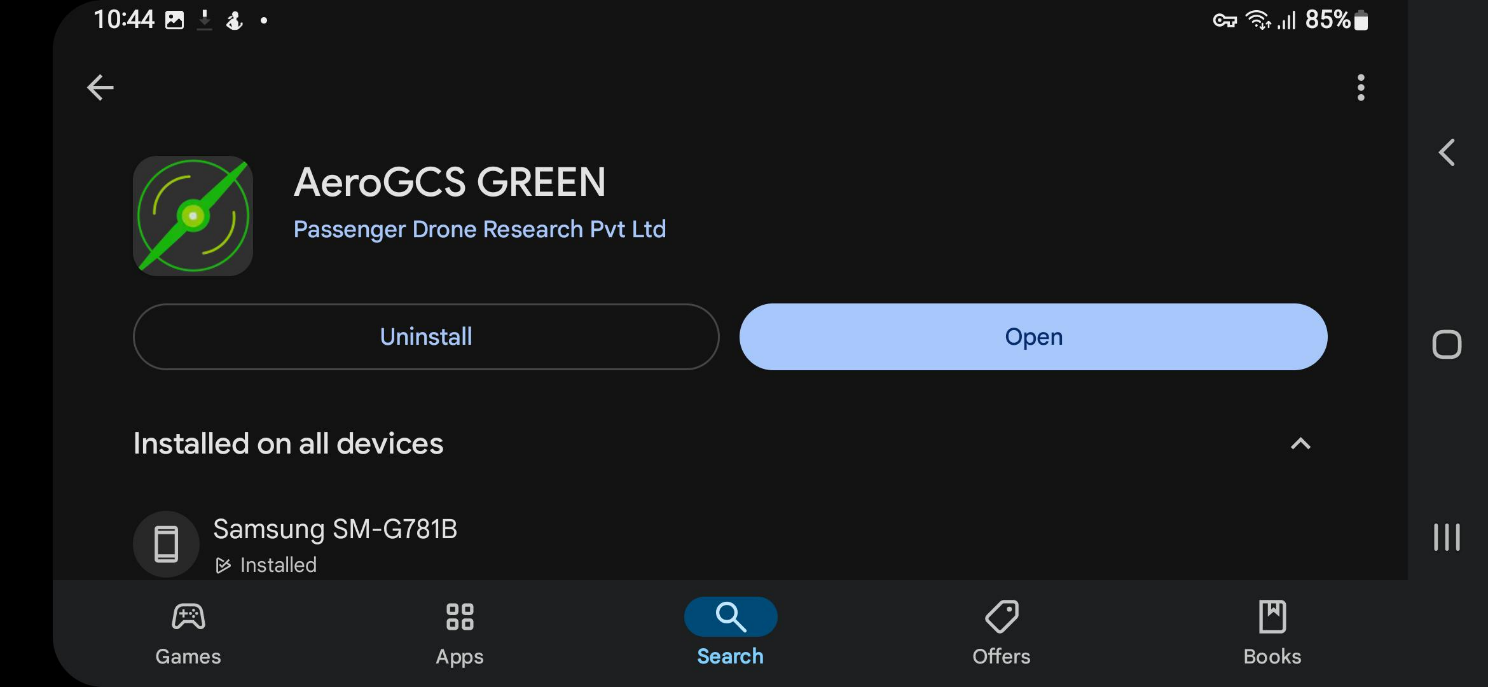
1.4 After Successful Installation, The Following Screen will appear on The user’s Device.
3.1.1 System Health Checkup
Every time AeroGCS GREEN is launched on a device, the application automatically performs a System Health Checkup to verify that the device meets the recommended operating conditions for optimal stability and safety.
This health diagnostic ensures that your device’s hardware resources, battery level, temperature, and software version are within safe operating limits before proceeding to mission planning or flight operations.
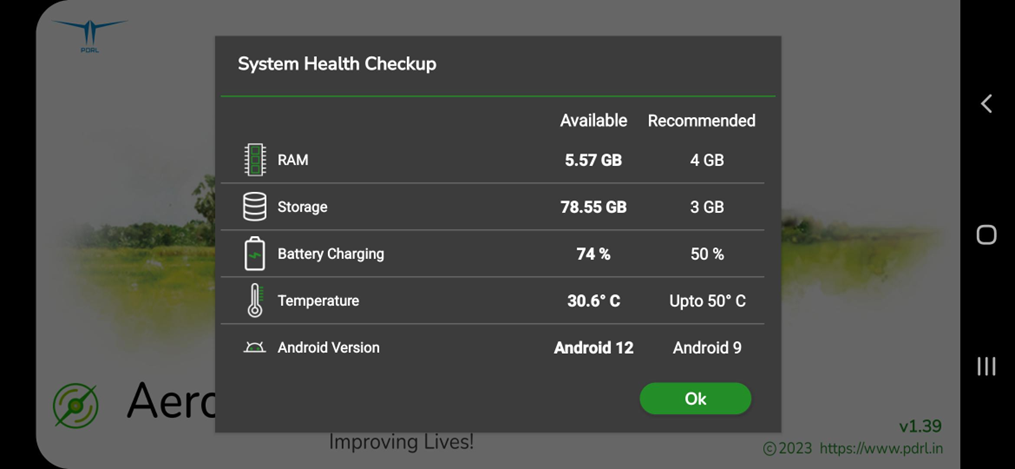
Tap on “Ok” Button to continue.
Purpose
The System Health Checkup acts as a preventive safeguard.
It confirms whether the mobile device is ready to run AeroGCS GREEN effectively without performance degradation or connectivity failures during mission planning and flying operations.
| Parameter | Description | Available (Example) | Recommended |
| RAM | Available memory on the device. Ensures smooth rendering of maps, flight telemetry, and mission plans. | 5.57 GB | 4 GB |
| Storage | Free internal storage available for saving mission data, logs, and reports. | 78.55 GB | 3 GB |
| Battery Charging | Displays the current battery level of the device. Recommended to maintain at least 50% charge before field operations. | 74% | 50% |
| Temperature | Indicates the current device temperature. Prolonged operations above 50°C may cause lag or shutdown. | 30.6°C | Up to 50°C |
| Android Version | Shows the installed Android operating system version. Minimum supported version: Android 9.0. | Android 12 | Android 9.0 or above |
System Behavior
- The checkup runs automatically on every launch of AeroGCS GREEN.
- If all parameters meet the minimum requirements, the OK button becomes active, allowing the user to proceed to the Dashboard.
- If any parameter is below the recommended threshold, a warning icon or message is displayed.
- The user must address the warning (e.g., charge the device, close background apps, or cool the device) to ensure stable performance.
- Once confirmed, tap OK to continue.
Note:
The System Health Checkup is a recurring safety feature designed to prevent system-related issues during live flight operations.
It ensures that every AeroGCS GREEN session begins with optimal system conditions, enhancing mission reliability and user safety.
3.2 Activating AeroGCS GREEN
Following the successful installation of AeroGCS GREEN, the next step is activation through the input of a license key. Below is the activation process guiding the user through the necessary steps to activate the user’s AeroGCS GREEN.
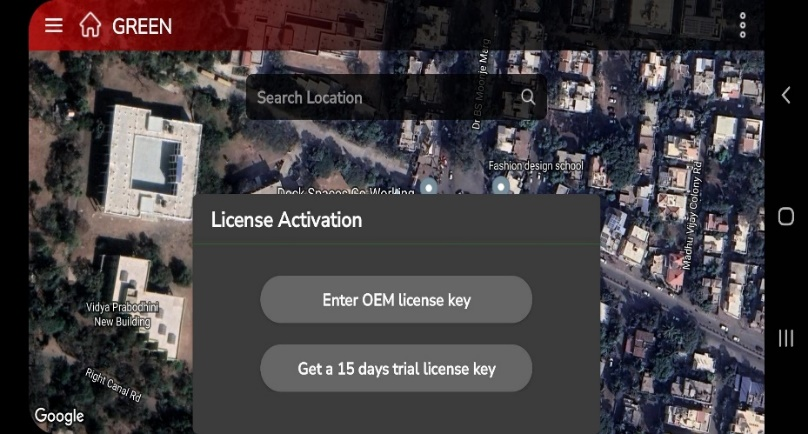
Step 1. Upon launching the application, the following interface will be shown on the user’s device screen, providing the user with the option to either activate the user’s license as an OEM user using the user’s license key or initiate a 15-day trial period. Please select the user’s preferred choice to proceed and input the necessary license information accordingly.
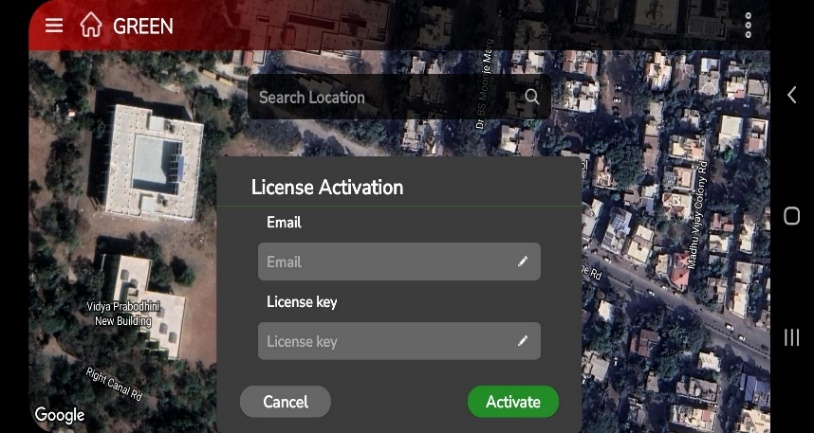
Step 2. Upon selecting the “Enter OEM license key” option, the user will be prompted to input the user’s registered “Email ID” and the corresponding “License Key” that the user received for that specific email address. Once provided, the user can proceed to activate the license by tapping on “Activate”.
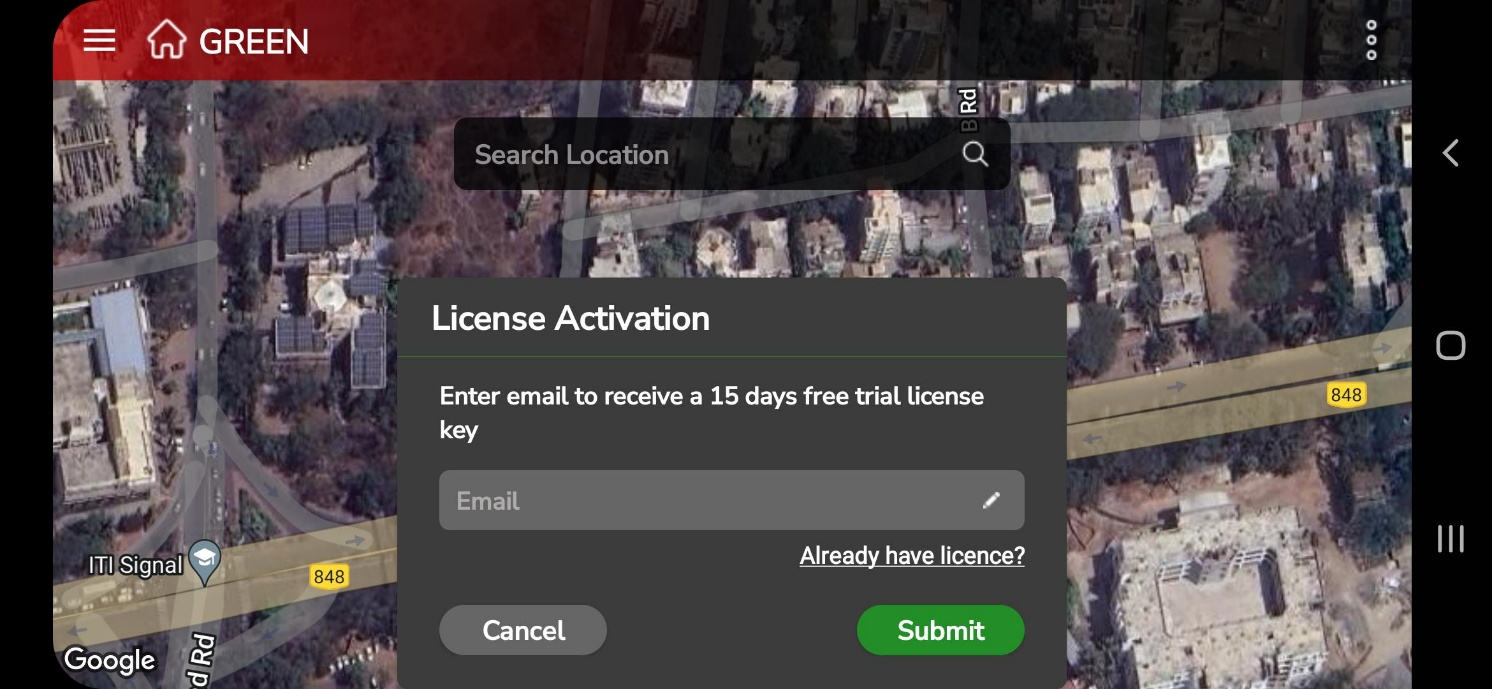
Step 3. For a 15-day activation of the application, simply click on the “Get a 15-day trial license key” button as shown in the “License Activation” figure. This action will lead the user to a screen where the user will be prompted to enter the user’s email address to receive the trial license key. After entering the user’s email, proceed by clicking the “Submit” button. A trial license key will be sent to the user’s email address.
Already have a License Key?
Tap on the “Already have license” link to access the License Key Activation screen.
Subsequently, the following screen will be displayed, enabling the user to input the license key and initiate the activation process for the user’s AeroGCS GREEN Application.
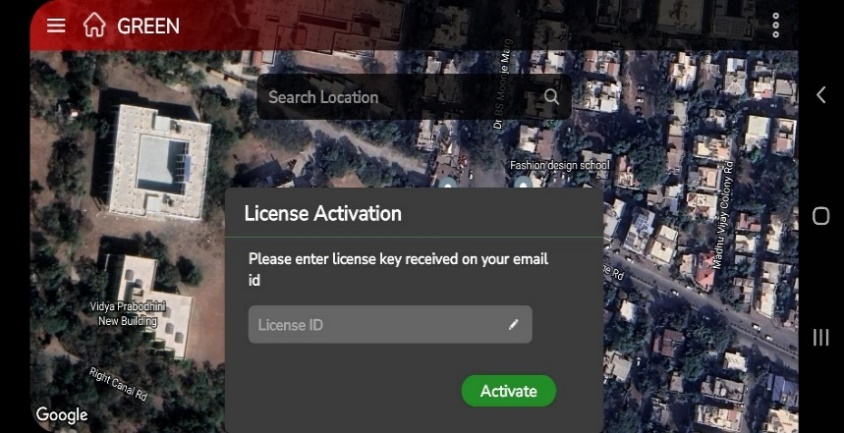
Click on the “Activate” Button. If activation is successful, the user can start using AeroGCS GREEN with all its features.
3.3 Updating AeroGCS GREEN
Stay Fresh with AeroGCS GREEN Updates! (A Detailed Guide)
Want to unlock the latest features and keep your drone missions running smoothly? Updating AeroGCS GREEN is key! Here’s a breakdown of the two ways to update, making sure you have the most up-to-date version:
- Play Store Update: The Classic Method
- Open the Google Play Store app on your device. It’s the familiar app icon that looks like a colourful play symbol.
- Tap the menu icon in the top left corner. This is usually three horizontal lines stacked on top of each other.
- Select “My apps & games” from the menu that appears. This will show you a list of all the apps currently installed on your device.
- Find AeroGCS GREEN in the list. You might need to scroll a bit depending on how many apps you have.
- Look for the “Update” button next to AeroGCS GREEN. If there is an update available, you’ll see this button.
- Tap the “Update” button and watch the magic happen! The Play Store will automatically download and install the update for you.
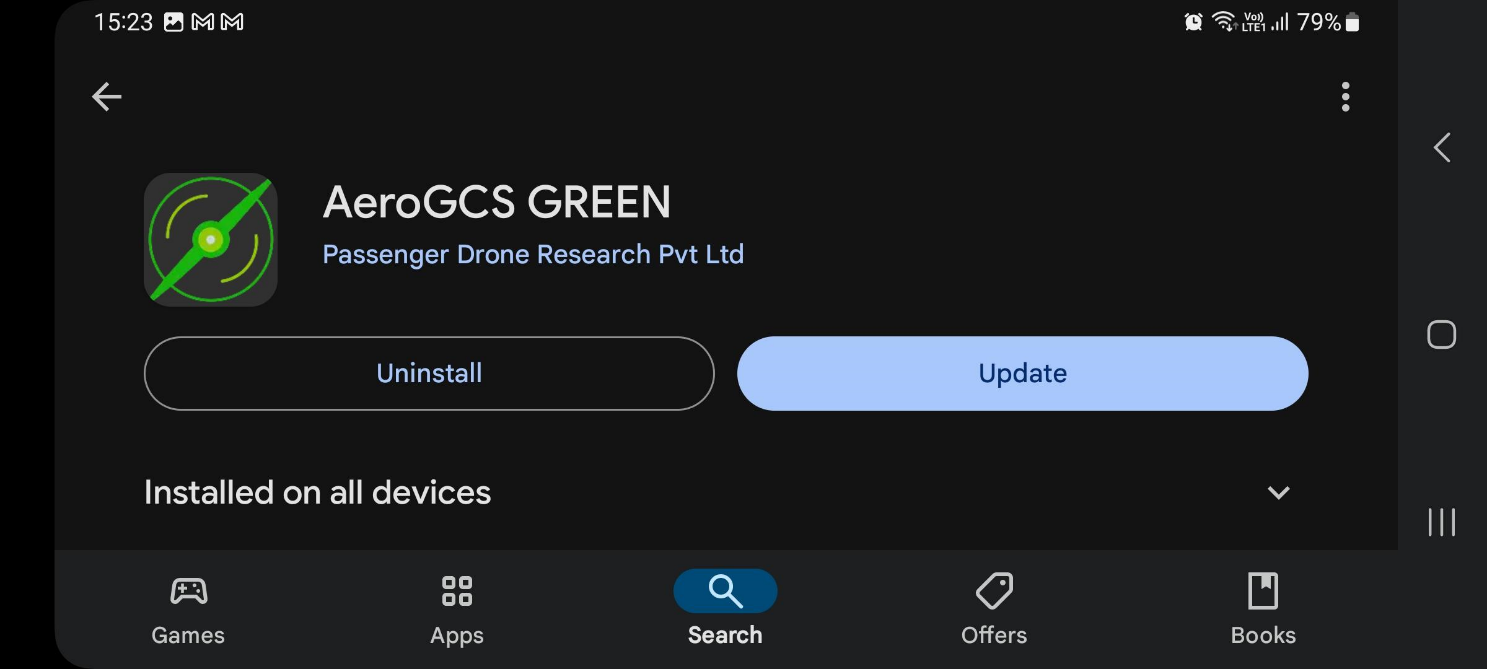
- Once the update is complete, open AeroGCS GREEN and get ready to explore the new features and improvements!
- Inline Update: Update on the Go!
AeroGCS GREEN is all about convenience, so it also offers inline updates. This means you can update directly within the app itself, without needing to go to the Play Store. Here’s what to keep an eye out for:
- A notification will pop up inside AeroGCS GREEN. This notification will let you know that a new update is available for download.
- Click on the “Update” button within the notification to start the update process. It’s usually that simple!
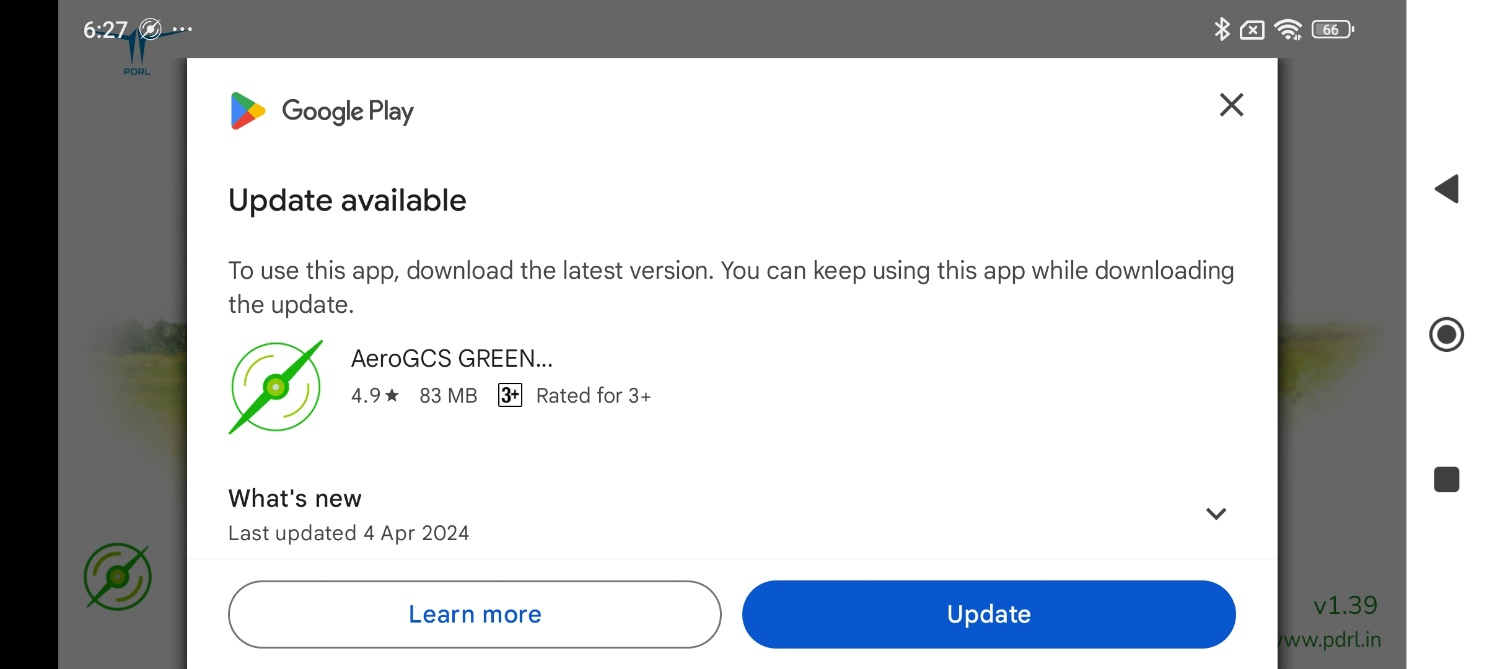
- Once the update is complete, open AeroGCS GREEN and get ready to explore the new features and improvements!
By keeping AeroGCS GREEN updated, you’ll ensure you have access to the latest features, bug fixes, and performance improvements. This translates to a smoother, more efficient, and enjoyable experience when planning and executing your drone missions! So, don’t hesitate to update whenever you see a notification, or remember to check the Play Store occasionally. Happy flying!
| Note: If the update prompt is skipped 5 times, the app will automatically force an update on the 6th prompt to ensure all users have the latest version for security and optimal performance. |